Connect to the MaintainX® MCP Server
The MaintainX MCP server is hosted in the cloud. You connect from your AI assistant and authenticate with your MaintainX credentials.
Requirements
- A MaintainX plan that includes MaintainX Assist.
- One of the AI assistants documented below (Claude, ChatGPT, or Copilot Studio), or another AI assistant that supports remote MCP servers and OAuth authentication.
Connect your AI assistant
To connect to the MaintainX MCP server, add an MCP server with the server URL https://mcp.maintainx.com/mcp.
Exact steps for adding an MCP server vary by AI assistant, so follow the steps for yours below. If yours isn't listed, follow its documentation to add https://mcp.maintainx.com/mcp as a remote MCP server or custom connector.
- Claude
- ChatGPT
- Copilot Studio
To use the MaintainX MCP server in Claude, add it as a custom connector in Claude on the web (claude.ai) or in Claude Desktop. How to add a custom connector depends on your Claude plan.
Claude Team and Enterprise
On Claude Team and Enterprise plans, someone with permission to add connectors, such as an Owner, must first add the MaintainX MCP server as a custom connector to your Claude organization. For who can do this and how, see the instructions in the Claude Help Center. When you add the connector, use these settings:
| Setting | Value |
|---|---|
| Server URL | https://mcp.maintainx.com/mcp |
| Authentication | Sign in now |
| OAuth client | Register automatically |
After the connector is added to your Claude organization, each user connects to it.
To connect to the MaintainX MCP server (each user):
- Go to Customize > Connectors.
- Locate the MaintainX connector that was added to your Claude organization, then select Connect.
- If Claude asks you to finish connecting, select Continue connecting, then sign in to MaintainX.
- Review the access request, then select Allow Access.
Claude Pro and Max
To add the MaintainX MCP server:
- Go to Customize > Connectors.
- Select + Add, then Add custom connector.
- Enter a name, such as
MaintainX, and the server URLhttps://mcp.maintainx.com/mcp. Then select Continue. - Review the authentication settings Claude detected, then select Continue.
- Set Authentication to Sign in now and OAuth client to Register automatically, then select Add.
- Follow the prompts to connect, sign in to MaintainX, and authorize the connection.
For more information on adding and managing MCP servers in Claude, see Get started with custom connectors using remote MCP.
To add the MaintainX MCP server in ChatGPT:
-
In ChatGPT, go to Plugins in the left navigation.
-
Select Add, then select Add custom MCP server.

-
Enter a name, such as
MaintainX. -
Under Connection, set the server URL to
https://mcp.maintainx.com/mcp. -
Set the authentication to OAuth.
-
Review the risk warning, then select the I understand and want to continue checkbox.
-
Select Create as a plugin.
-
In the connection window, select Continue to MaintainX.
-
Sign in to MaintainX if prompted. Review the access request, then select Allow Access.
For more information on adding and managing MCP servers in ChatGPT, see Connecting custom MCP servers in ChatGPT.
To add the MaintainX MCP server in Copilot Studio:
-
Open your agent and go to Tools.
-
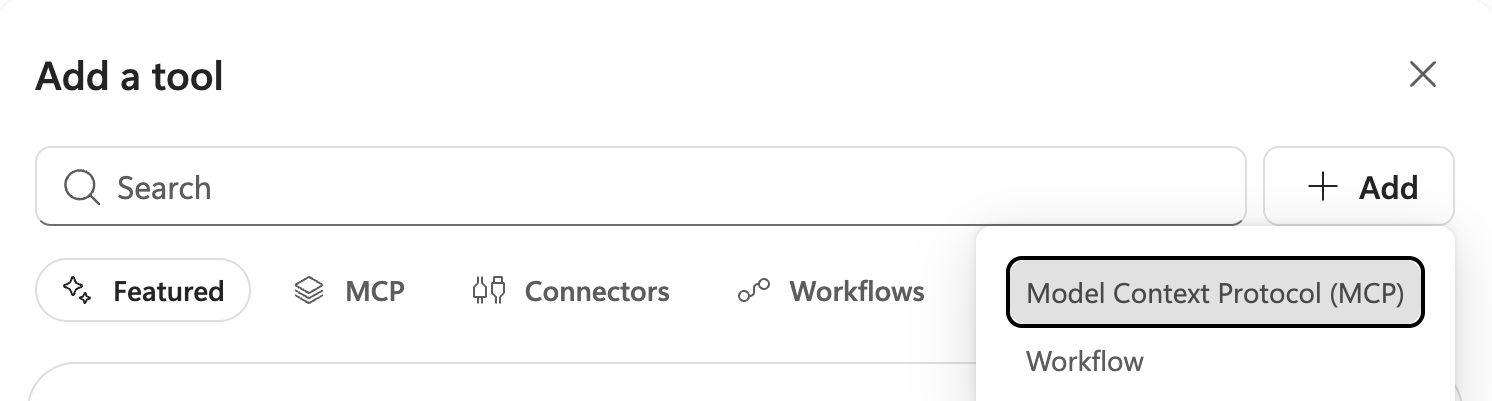
Select Add a tool.
-
Select + Add, then select Model Context Protocol (MCP).
-
Enter the following settings, then select Create:
Setting Value Server name A name, such as MaintainXServer description A description of the server Server URL https://mcp.maintainx.com/mcpAuthentication OAuth 2.0 Configuration type Dynamic (with discovery) -
Beside Connection, open the dropdown, then select Create new connection.
-
In the Creating a connection window, select Create.
-
In the MaintainX connection window, sign in to MaintainX if prompted. Review the access request, then select Allow Access.
-
In the Select a connection window, select Add.
For more information on adding and managing MCP servers in Copilot Studio, see Connect your agent to an existing Model Context Protocol (MCP) server.
Try it out
Once you've connected to the MCP server, ask your AI assistant about your MaintainX data. If you're not sure where to start, try this example prompt:
I've connected my MaintainX account. Ask me 2-3 questions about what I
want to track, then pull the relevant data and give me a summary of what you find.
With this prompt, your AI assistant responds with some questions to understand what data you are interested in exploring.
To get more useful answers, see the usage guide.
Authentication
The MaintainX MCP server uses OAuth, so you connect and authorize your AI assistant by signing in with your MaintainX credentials. This means:
- Access is limited by your MaintainX permissions. The MCP server has the same permissions as your MaintainX user account, so your AI assistant can only retrieve the data you can view in MaintainX.
- The connection lasts 90 days. The MCP server stays connected, even when you're away, until the connection expires or you disconnect it. Your AI assistant uses access tokens that last up to 4 hours and renews them in the background. After the connection expires, you need to authorize it again to keep using the MCP server.
- Signing out of MaintainX doesn't disconnect your AI assistant from the MCP server. To remove its access, follow the steps in the next section.
Disconnect your AI assistant
To remove your AI assistant's access to the MaintainX MCP server:
- In MaintainX, from the sidebar, open the Settings menu, and in the MY ACCOUNT section, select Profile Preferences.
- Scroll down to Linked Devices, and select your AI assistant, such as Claude.
- In the MCP connection window, select Disconnect application.