Usage guide
After you connect your AI assistant, such as Claude or ChatGPT, to the MaintainX® MCP server, you can ask it to retrieve and analyze the MaintainX data you have permission to view. This guide provides tips for writing effective prompts and examples for common MaintainX workflows.
Effective prompting
To get more useful answers about your MaintainX data:
- Be specific. Clearly describe the question you want answered and the information you want included.
- Use exact names. Refer to organizations, locations, assets, teams, vendors, and parts by the names used in MaintainX.
- Explore with follow-up questions. Start with a broad question, review the response, then ask follow-up questions to filter, compare, or explore specific results.
Usage examples
Use the examples as starting points and replace text in brackets with details from your organization. For more relevant answers, specify a location, asset, team, date range, and the information you want returned when applicable.
Daily work order triage
Use at the start of your shift or morning standup.
Prompt examples:
What work orders are currently open or overdue?
Group by priority and tell me which ones have been open the longest.
Give me a morning briefing:
how many work orders are open, how many are overdue, and which ones are unassigned?
What's the current backlog?
Show me open work orders by status and flag anything past its due date.
Site or location status
Use when you're responsible for multiple sites or want a location-specific view.
Prompt examples:
What work orders are open at [Location Name]? Summarize by status and assignee.
Give me a status update for all work orders at [Location Name].
What's in progress, what's on hold, and what's overdue?
Show me the overdue work orders across all locations, grouped by location.
Shift handoff
Use at the end of a shift to prepare a handoff summary.
Prompt examples:
Summarize the work orders completed today and which ones are still in progress or on hold.
Format it as an end-of-shift summary.
What work orders were closed in the last 8 hours?
List any that were left in-progress or on hold for the next shift.
What work orders did my team complete or update today?
Summarize completed vs. still-open.
Asset-specific
Use when investigating a specific piece of equipment.
Prompt examples:
Show me all open work orders for [Asset Name].
Include status, assignee, and how long each has been open.
What work orders have been completed on [Asset Name] in the last 30 days?
Which assets have the most open work orders right now?
Technician workload
Use when managing team assignments or checking coverage.
Prompt examples:
How many open work orders does each technician currently have assigned?
Flag anyone with more than 5 open.
Who has the most open work orders right now,
and what are their highest priority items?
Are there any unassigned work orders? If so, list them by priority.
Preventive maintenance
Use to stay ahead of scheduled maintenance.
Prompt examples:
Which preventive maintenance work orders are due this week? Are they all assigned?
Show me any PMs that are overdue or at risk of being missed.
How many preventive maintenance work orders were completed
this month vs. last month?
Weekly summary
Use for management reporting or weekly reviews.
Prompt examples:
Give me a weekly summary of work order volume:
how many were opened, completed, and are still open.
What's the average time to complete a work order this month?
Has it changed vs. last month?
Show me work order counts by location for last month.
Work with multiple organizations
If you have access to multiple organizations that have MaintainX Assist, your AI assistant asks which one to use if you don't specify one in your initial prompt.
To ask about a specific organization, or to switch to another one, name it in your prompt:
Using [Organization Name], what work orders are currently open or overdue?
To ask about several organizations at once, name each one or ask for all of them:
Show me open work orders in [Organization A] and [Organization B], grouped by organization.
What work orders are overdue across all of my organizations?
Explore available data
Not sure what else to ask? Ask your AI assistant what MaintainX data it can access:
What MaintainX data can you access?
Or ask which tools it can use:
What MaintainX tools do you have access to?
Your AI assistant responds with the data and tools it can use.
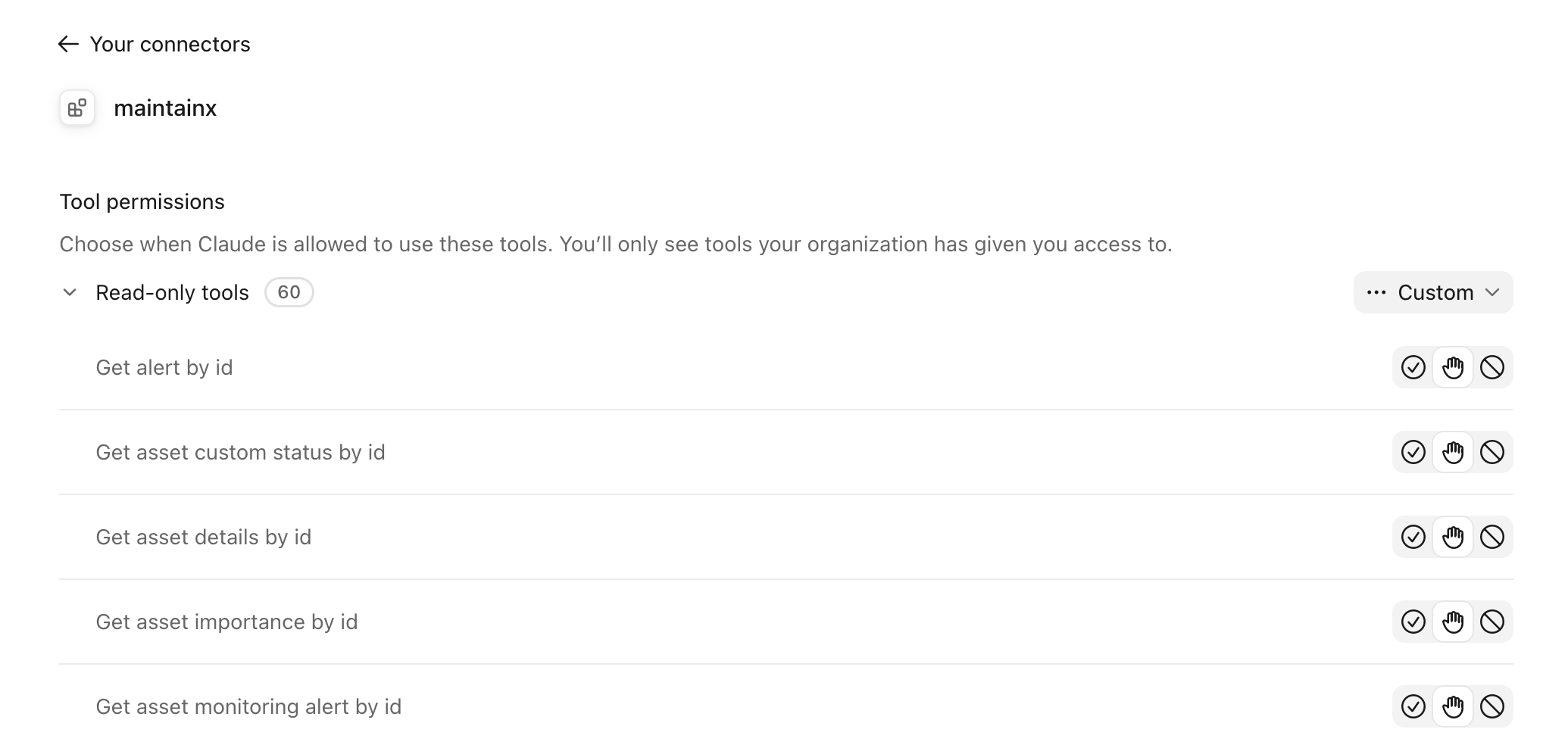
You can also see the tools in some AI assistants' connector settings. For example, in Claude Desktop:
- In the sidebar, select Customize, then Connectors.
- Select the MaintainX connector. The available tools are displayed.
Troubleshooting
Access error or unexpected empty result
If you get an access error or an empty result you don't expect, you might need the reporting permission on your account. Some MaintainX MCP server tools use reporting data, which requires this permission. Ask your MaintainX Administrator to add it.
Rate limit error
If your AI assistant tells you that you've reached a rate limit, wait a minute, then try again. Requests to the MCP server are subject to the same rate limits as the MaintainX REST API but are counted separately from REST API requests.