View and Manage Root Cause Analysis Reports
| Platform: | AvailableWebAvailableMobile |
|---|---|
| Plan Type: | Not availableBasicNot availableEssentialNot availablePremiumAvailableEnterprise |
| User Type: | Not availableRequesterAvailableFull UserAvailableAdministrator |
When you view an asset's details, the Insights tab lists all the asset's root cause analysis reports. The list includes completed reports and draft reports.
- Web
- Mobile
-
Select View Report to open any completed report.
-
Select Finish Report to continue editing any draft report.
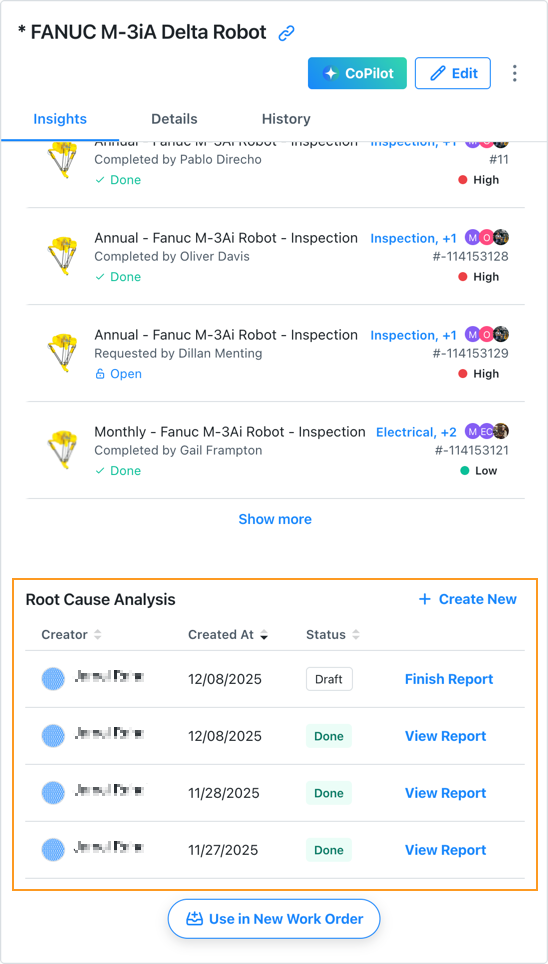
List of an asset's root cause analysis reports in the web application
-
Select the (right chevron) icon next to any completed report to open it.
-
Select the (right chevron) icon next to any draft report to continue editing it.
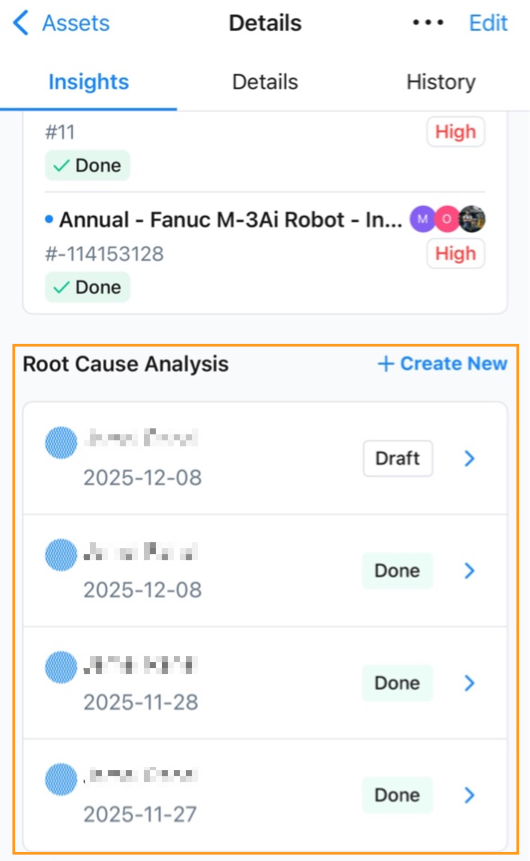
List of an asset's root cause analysis reports in the mobile application
View a Root Cause Analysis Report from a Work Order
When you link a root cause analysis report to a work order, the report appears in the Root Cause Analysis section of the work order details page.
To view a linked report from a work order:
- Web
- Mobile
- Open the work order.
- Navigate to the Root Cause Analysis section.
- Select View Report to open it. Depending on your permissions and the report's status, either the report's edit page or its read-only details page opens.
- Open the work order.
- Scroll down to the Root Cause Analysis section.
- Select the report to open it. Depending on your permissions and the report's status, either the report's edit page or its read-only details page opens.
Edit a Completed Root Cause Analysis Report
You can edit a completed root cause analysis report. For example, you can make corrections or add missing details.
- Web
- Mobile
On the Insights tab of the asset details page:
-
Locate the report you want to edit and select View Report to open it.
-
On the report page, select the icon (more options), then select Edit.
-
Edit the report as needed:
-
Select Save to save your changes.
On the Insights tab of the asset details screen:
-
Locate the completed report you want to edit and select the (right chevron) icon to open it.
-
On the report screen, select the icon (more options), then select Edit.
-
Edit the report as needed:
-
Select Save to save your changes.
Export a Root Cause Analysis Report
You can export a completed root cause analysis report as a PDF file that you can share or email.
- Web
- Mobile
On the Insights tab of the asset details page:
-
Locate the report you want to edit and select View Report to open it.
-
On the report page, select Export. A download notification appears.
-
From the download notification, you can do any of the following:
- Download the exported file.
- Open the export in a browser new tab. This option is only available for PDF files.
- Select View in Download Center to open the download center. The exported file appears in the Export Request History section.
On the Insights tab of the asset details screen:
- Locate the completed report you want to export and select the (right chevron) icon to open it.
- On the report page, select Export. MaintainX® opens the Download Center.
- From the Download Center, select the report to view it in your mobile browser, where you can download it or share it.
Delete a Root Cause Analysis Report
You can delete a completed root cause analysis report if it's no longer needed.
- Web
- Mobile
On the Insights tab of the asset details page:
- Locate the report you want to edit and select View Report to open it.
- On the report page, select the icon (more options), then select Delete.
- When prompted, confirm that you want to delete the report.
On the Insights tab of the asset details screen:
- Locate the completed report you want to edit and select the (right chevron) icon to open it.
- On the report screen, select the icon (more options), then select Delete.
- When prompted, confirm that you want to delete the report.
Restore a Deleted Root Cause Analysis Report
You can restore a deleted root cause analysis report if you deleted it by mistake.
- Web
- Mobile
On the History tab of the asset details page:
-
In the asset history, locate the message that the report was deleted.
The message should have the following format:
<USER NAME> <MM/DD/YYYY, HH:MM AM/PM>Deleted a root cause analysis report. View ReportSelect View Report to open the report.
-
On the report page, select the icon (more options), then select Restore.
On the History tab of the asset details screen:
-
In the asset history, locate the message that the report was deleted.
The message should have the following format:
<USER NAME> <MM/DD/YYYY, HH:MM AM/PM>Deleted a root cause analysis report. View ReportSelect View Report to open the report.
-
On the report screen, select the icon (more options), then select Restore.