Service Report Settings
Before your team starts sending service reports, the Administrator can configure how the reports look and how they're delivered. This article explains how to:
- Choose which sections appear in the report.
- Add your company branding.
- Turn on auto-send.
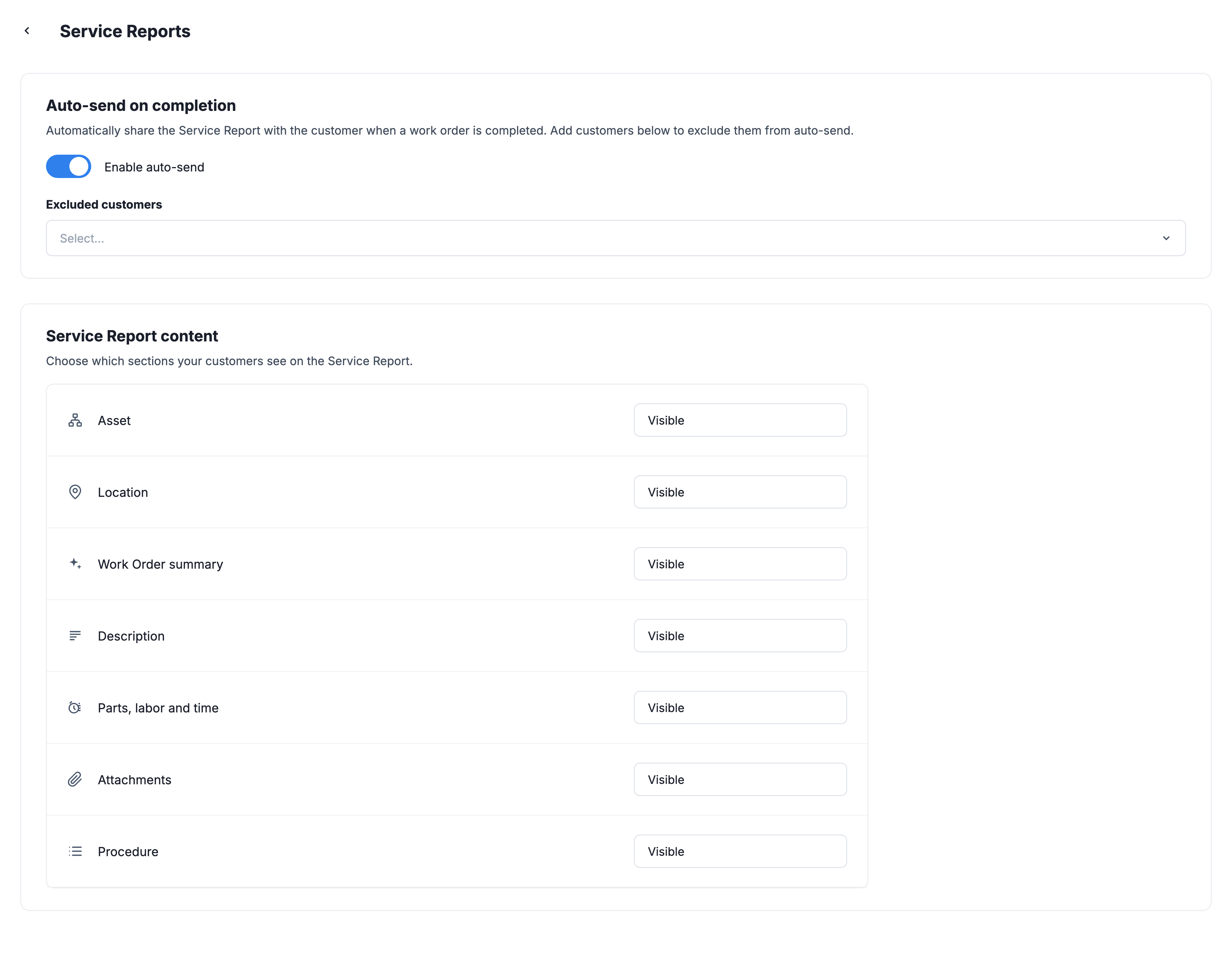
Choose Which Sections Appear in the Report
You can control which sections your customers see on the service report.
- From the sidebar, select the Settings menu.
- Navigate to the Features tab, select Work Orders.
- Navigate to Service Reports and select Set Preferences.
- Under Service Report content, set each section to either Visible or Hidden.
You can also open this settings page from the Share Service Report dialog box on a work order by selecting the settings link.
Add Your Company Branding
Your company logo and details appear at the top of every service report and in the email the customer receives. Branding is configured from your organization's branding settings:
- From the sidebar, select the Settings menu.
- Select General.
For more information on how to configure your branding, see Configure Organization Settings.
Turn On Auto-Send
With auto-send turned on, MaintainX® sends a service report to the customer every time a customer work order is marked Done. Auto-send applies to all customers, and you can exclude the ones you don't want to receive reports automatically.
- From the sidebar, select the Settings menu.
- Select Service Reports.
- Turn on Enable auto-send.
- (Optional) Under Excluded customers, from the drop-down list, select any customers you want to leave out of auto-send. To start auto-sending to an excluded customer again, select the X icon next to their name.
You can still send reports to excluded customers manually from the work order. For more information, see Send a Service Report to a Customer.