About Smart Hub
| Platform: | AvailableWebNot availableMobile |
|---|---|
| Plan Type: | Not availableBasicNot availableEssentialNot availablePremiumAvailableEnterprise |
| User Type: | Not availableRequesterAvailableFull UserAvailableAdministrator |
Smart Hub is the central workspace for AI-powered skills in MaintainX®. Set up skills to:
- Run recurring analyses.
- Surface operational insights.
- Identify trends.
- Generate reports, recommendations, or draft content.
Run skills on demand or, when supported, schedule recurring runs. Review the results in the Smart Hub inbox and decide what to do next.
AI-generated recommendations may include errors. Review recommendations before acting on them.
How Smart Hub Works
- Select and configure a skill. Choose a skill that fits with your workflow and set it up, then create a configuration with the settings you want. For more information, see Manage Skill Configurations.
- Run the skill. Run the skill on demand or, when the skill supports it, on a schedule.
- Get the results. The skill analyzes your data, sends its output to the Smart Hub inbox, and notifies you when it's ready.
- Review and act. Review the output and decide what to do next. The available actions depend on the skill.
Throughout the workflow, you stay in control by deciding when to run a skill and whether to review, approve, archive, or act on its generated output.
AI-Powered Skills
An AI-powered skill is a configurable AI capability that analyzes your operational data and generates recommendations, reports, or other outputs. You can create several configurations for the same skill, each with its own settings, scope, and schedule, to analyze different areas of your organization.
Available AI-Powered Skills
You can use the following AI-powered skills to accelerate your daily workflow.
| AI-Powered Skill | Helps You | Output |
|---|---|---|
| End of Shift Summary | Keep track of what happened during a shift. | A shift handoff report from work order activity. |
| Parts Restocker | Maintain your parts inventory. | A prefilled purchase order with a list of parts to order. |
| Performance and Trend Analyst | Identify maintenance trends in your organization. | A report containing key maintenance metrics, with an explanation of each value. |
| PM Plan Auditor | Evaluate how well an asset’s preventive maintenance program works. | A report covering PM completion, failures despite maintenance, and PMs that repeatedly find no issues over a selected date range. |
| PM Schedule Monitor | Identify preventive maintenance tasks falling behind schedule. | A list of preventive-maintenance tasks to update. |
| Request Cleanup Helper | Review incoming work requests. | A triage briefing of incoming work requests. |
| Root Cause Analyst | Investigate causes of unplanned downtime for critical assets and identify possible corrective actions. | A root cause analysis report with recommendations. |
| To-Do List Summary | Keep track of your daily tasks. | A brief covering recent work order activity, conversations awaiting a reply, urgent assigned work orders, and purchase orders needing action. |
Built-In Safeguards
AI-powered skills enhance your maintenance workflows, but include built-in safeguards that prevent them from acting independently.
Skills can't:
- Execute changes without your approval.
- Make final or autonomous decisions.
MaintainX implemented these safeguards to make sure you remain in control of your organization's data and workflows.
Your review and approval are required before AI-generated outputs are incorporated into your workflow.
Use Case: Restock Parts
The following workflow illustrates how, as an Administrator, you can configure and run Parts Restocker to identify parts that need restocking and generate a draft purchase order for review.
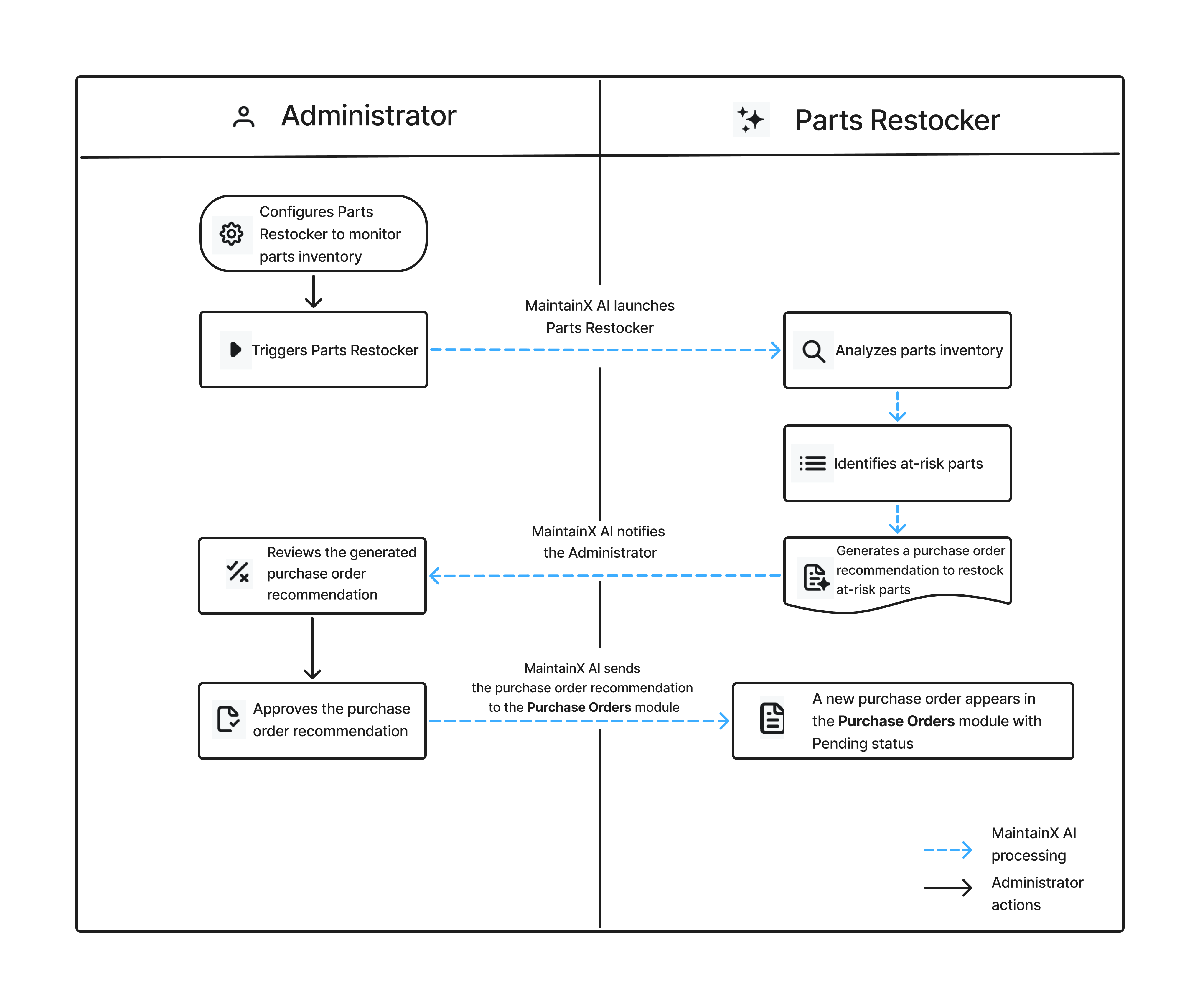
| Description | |
|---|---|
| 1 | Select and configure Parts Restocker. |
| 2 | Run the skill to review your parts inventory. |
| 3 | Parts Restocker analyzes your inventory. |
| 4 | Parts Restocker identifies parts needing restocking. |
| 5 | Parts Restocker generates a purchase order recommendation to replenish parts that need restocking. |
| 6 | Review the generated purchase order recommendation and edit it if needed. |
| 7 | Approve the purchase order recommendation. |
| 8 | After approving the suggestion, the purchase order appears in the Purchase Orders module with Pending status. |
Help Us Improve Smart Hub
Help us improve Smart Hub by suggesting new skills or sharing feedback on AI-generated outputs. Your feedback will help us identify opportunities to improve existing skills and develop new ones.
- Suggest a new skill: Go to Smart Hub > Skills and suggest a skill you'd like to see in Smart Hub. Describe what you want the skill to do and how it could support your workflow.
- Share feedback on AI-generated outputs: Open an output on the Smart Hub inbox page and tell us what worked well, what was inaccurate or missing, or how it could be improved. For more information, see Share Feedback on an Output.