Parts Restocker
| Platform: | AvailableWebNot availableMobile |
|---|---|
| Plan Type: | Not availableBasicNot availableEssentialNot availablePremiumAvailableEnterprise |
| User Type: | Not availableRequesterAvailableFull UserAvailableAdministrator |
Parts Restocker reviews your parts inventory to identify parts that need restocking and recommends purchase orders to restock them.
When to Use Parts Restocker
You can use Parts Restocker to identify parts at risk of running out and decide what to order. The recommendations help you restock your inventory before receiving a restock alert.
Before You Start
To use the Parts Restocker skill, you need:
- The Parts Inventory and Purchase Orders features enabled in your organization.
- Permission to create purchase orders.
For more information, see User Roles and Permissions.
What the Skill Reviews
Parts Restocker uses the following information to generate a recommendation:
| Data | Information Reviewed |
|---|---|
| Inventory levels | Current inventory levels, and minimum and maximum quantities. |
| Lead time | Lead time for each part. |
| Consumption | Historical consumption and upcoming work order demand. |
| Part risk | The risk of each part running out. |
| Vendors | Vendor grouping, where available. |
Limitations
Parts Restocker has the following limitations:
| Limitation | Details |
|---|---|
| At-risk parts | Reviews up to 75 at-risk parts per run, ranked by priority. |
| Recommendations only | The skill only generates purchase order recommendations. It doesn't generate purchase orders. |
| Vendor groups | You can only accept or reject vendor-group suggestions as a whole. |
Review the recommendation before taking any action. For more information about the safeguards MaintainX® applies to all AI-powered skills, see Built-In Safeguards.
Settings
When you add or edit a configuration, set the following options in the skill's Settings section:
| Setting | Description |
|---|---|
| Include Parts | Include parts by Vendors, Locations, Teams, or Part Types. |
| Exclude Parts | Exclude parts by Part Types or Parts. |
Review a Recommendation
Parts Restocker provides a summary of its analysis run and generates purchase order recommendations with the quantities it identified.
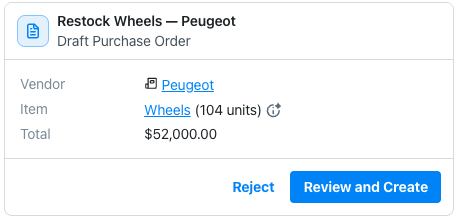
To review a recommendation:
- On the recommendation card, select Review and Create. The draft purchase order opens.
- Review and adjust the draft as needed.
- Select Create Purchase Order.
The finalized purchase order appears in the Purchase Orders module, where you can follow the regular purchase order workflow. For more information, see Purchase Order Workflow Overview.