Performance and Trend Analyst
| Platform: | AvailableWebNot availableMobile |
|---|---|
| Plan Type: | Not availableBasicNot availableEssentialNot availablePremiumAvailableEnterprise |
| User Type: | Not availableRequesterAvailableFull UserAvailableAdministrator |
Performance and Trend Analyst identifies meaningful changes in your key maintenance metrics over a selected time range. It generates a summary that explains what changed and what to do next.
When to Use Performance and Trend Analyst
You can use Performance and Trend Analyst to monitor changes in your maintenance performance over time. This skill can help you prepare for a review meeting or evaluate performance at the end of a reporting period by analyzing the following metrics:
- Reactive and planned work orders
- Created and completed work orders
- On-time and overdue work orders
- Average time to complete work orders
Before You Start
To use the Performance and Trend Analyst skill, you need access to the Reporting module with its attached data and metrics. For more information, see User Roles and Permissions.
What the Skill Reviews
Performance and Trend Analyst analyzes the following work order metrics in the selected time range to generate a summary:
| Metric | What It Measures |
|---|---|
| Non-Repeating vs. Repeating | Reactive and planned work orders. |
| Created vs. Completed | Work orders created and work orders completed. |
| On Time vs. Overdue | Work orders completed on time and work orders that are overdue. |
| Time to Complete | The average time it takes to complete work orders. |
Limitations
Performance and Trend Analyst has the following limitations:
| Limitation | Details |
|---|---|
| Scope | Identifies what changed, not why a metric changed. |
| Limited Recommendations | Provides up to 3 recommendations to remediate identified issues. |
Review the summary before taking any action. For more information about the safeguards MaintainX® applies to all AI-powered skills, see Built-In Safeguards.
Settings
When you add or edit a configuration, set the following options in the skill's Settings section:
| Setting | Description |
|---|---|
| Metrics | The metrics to include in the summary:
|
| Compare to last | The comparison window. You need to define a comparison window as it sets the period the skill analyzes to identify changes. |
Review the Summary
The summary includes what changed in your key maintenance metrics and why the change matters.
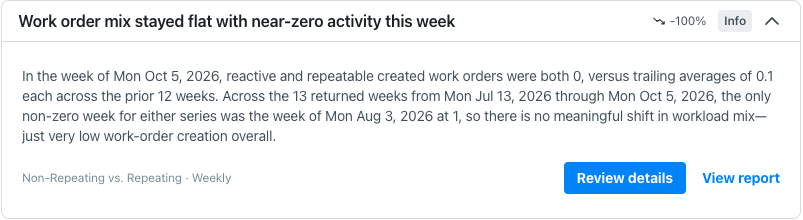
To further understand the changes in your maintenance metrics, select one of the following option on the summary card:
- Review details to open the graph for the metrics mentioned in the summary.
- View report to open the underlying report in the Reporting Details screen.
For more information, see About Work Order Reports.