Create and Manage Root Cause Analysis Categories
| Platform: | AvailableWebNot availableMobile |
|---|---|
| Plan Type: | Not availableBasicNot availableEssentialNot availablePremiumAvailableEnterprise |
| User Type: | Not availableRequesterNot availableFull UserAvailableAdministrator |
This article explains how to set up root cause analysis categories and options for your organization. The full list of categories and options make up your default collection. You can organize subsets of categories and options into other collections that are specific to different asset types or criticality levels. For details, see Organize Categories and Options in Collections and Create and Manage Root Cause Analysis Collections.
You set up categories and options from the Root Cause Analysis section of the asset settings.
- To get started, see Open the Root Cause Categories Editor.
- For recommendations and best practices, see Tips for Setting Up Root Cause Categories.
Open the Root Cause Categories Editor
- From the sidebar, select Settings > Features.
- Navigate to the Assets section and select Set Preferences.
- On the Assets preferences page, navigate to the Root Cause Analysis section.
- Select Configure Root Cause Analysis Reports.
The Root Cause Analysis configuration screen opens.
Add a Root Cause Category
From the Categories section 1 of the Root Cause Analysis configuration screen, do one of the following:
- Select the (Add New) icon to create a new root cause category. Give it a name, and press Enter to add it.
- Select one of the Suggested Items to add it.
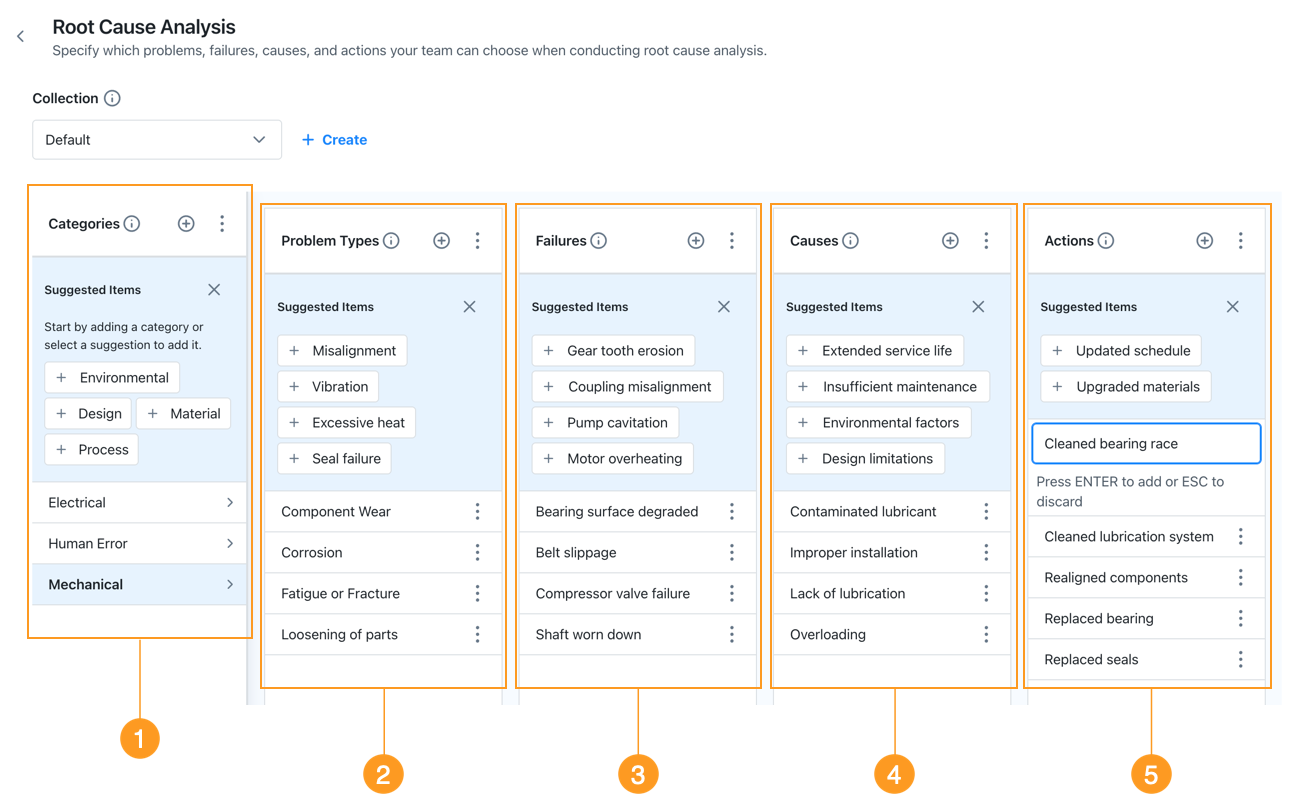
After you add a category, add its Problem Types 2, Failures 3, Causes 4, and Actions 5 in their respective columns.
-
To add a new option to any group, select the (Add New) icon, and enter the option name.
-
If you started with a suggested category, MaintainX® also suggests options for its Problem Types, Failures, Causes, and Actions. Select any suggested option to add it.
Suggested categories are only available in English. If you use another display language for your organization or user profile, these items are not translated.
For recommendations for setting up categories, see Tips for Setting Up Root Cause Categories.
Edit a Root Cause Category
After you create a root cause category, you can add or remove Problem Types, Failures, Causes, and Actions.
-
To add an option, do one of the following:
- Select the (Add New) icon, and enter the option name.
- Select from the Suggested Items (if available).
-
To remove an option, select its (More Options) icon, then select Delete.
If the option was originally a suggested option, MaintainX adds it back to the Suggested Items list. If the option was created manually, MaintainX deletes it permanently.
Deleting an item doesn't affect existing root cause analysis reports, but the item is no longer available for new reports.
Suggested options are only available in English. If you use another display language for your organization or user profile, these items are not translated.
Copy Items from Another Root Cause Category
You can copy Problem Types, Failures, Causes, and Actions from an existing category.
- Select the (More Options) icon in the column head, then select Copy from another category.
- In the Copy from Other dialog, select the category to copy from, and the items you want to copy.
- Select Copy Items.
Delete a Root Cause Analysis Category
You can delete root cause categories that you're no longer using. Deleting a category doesn't affect existing root cause analysis reports, but the category is no longer available for new reports.
Deleting a category also deletes all of its options. If you add the category back later, MaintainX doesn't restore the options—you have to add them back yourself.
To delete a root cause analysis category:
- Hover over the category, and select the (More Options) icon.
- From the More Options menu, select Delete.
Troubleshooting
Suggested Items Aren't Displayed
If you don't see Suggested Items for a particular column, it's for one of the following reasons:
- You used all the available suggestions.
- You hid them. To display the Suggested Items again, select the (More Options) icon in the column head, then select Show Suggested Items.