Create and Manage Root Cause Analysis Collections
| Platform: | AvailableWebNot availableMobile |
|---|---|
| Plan Type: | Not availableBasicNot availableEssentialNot availablePremiumAvailableEnterprise |
| User Type: | Not availableRequesterNot availableFull UserAvailableAdministrator |
This article explains how to set up collections of your organization's root cause analysis categories and options. For more information about creating categories and options, see Create and Manage Root Cause Analysis Categories.
Collections are subsets of your organization's root cause analysis categories and options. When a technician creates a root cause analysis report for an asset that matches a collection, they only see the categories and options from that collection. A curated list of relevant options helps technicians accurately document the asset failure and complete the report faster.
Create a New Collection
You create collections from the Root Cause Analysis section of the asset settings, where you set up categories and options. (See Open the Root Cause Categories Editor.)
To set up a collection, you have to do the following:
Create the Collection
-
Open the root cause categories editor.
-
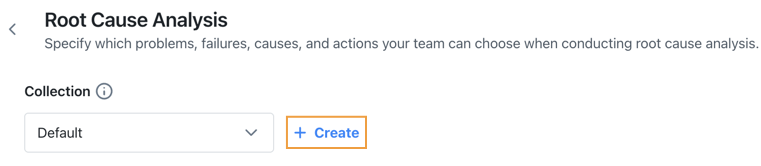
In the Collection section, select Create. The Create Collection dialog opens.
-
Enter a Collection Name.
-
To finish creating the collection do the following:
Add Criteria
Collection criteria determine which assets match the collection. For more information, see Collection Criteria.
To add collection criteria:
-
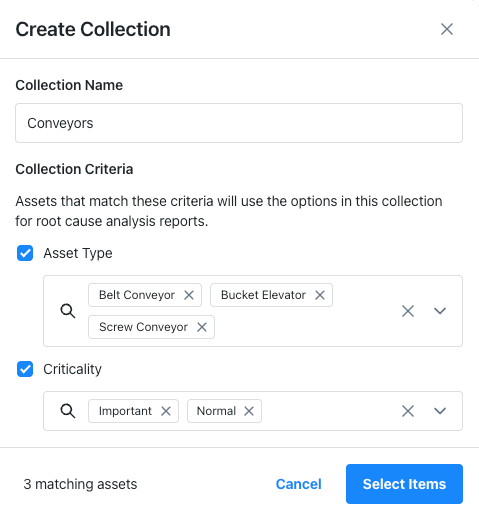
Select the type of Collection Criteria to use (e.g., Asset Type and Criticality). A collection can use more than one type of criteria.
-
For each criteria type, select the specific criteria to use.
For example, if you selected Asset Type as a criteria type, select the specific asset types you want the collection to match.
 tip
tipAs you add collection criteria, the Create Collection dialog displays the number of matching assets in your organization.
-
Select Select Items.
The collection configuration screen opens. It displays all the categories and options from the default collection.
Add Categories and Options
Choose which categories and options technicians see when they create a root cause analysis report for an asset that matches the collection.
From the collection configuration screen:
-
Select a category from the Categories column.
The options for the category appear in the Problem Types, Failures, Causes, and Actions columns.
-
In each column, select the options to add to the new collection.
-
Select Save Collection.
The Root Cause Analysis configuration screen opens, and displays the new collection.
Edit a Collection
Collection criteria determine which assets match the collection. For more information, see Collection Criteria.
To edit a collection:
-
Open the root cause categories editor.
-
In the Collection section, select the collection you want to edit.
-
Select (More Options), and from the menu, select one of the following:
- Edit Items. Opens the collection configuration screen, where you can add and remove categories and options. See Edit Collection Items.
- Edit Details. Opens the Edit Collection Details dialog, where you can rename the collection and edit its criteria. See Edit Collection Details.
Edit Collection Items
Change which categories and options technicians see when they create a root cause analysis report for an asset that matches the collection.
In the collection configuration screen, do the following:
-
Select a category from the Categories column.
The options for the category appear in the Problem Types, Failures, Causes, and Actions columns.
-
In each column, select the options to add and remove from the new collection.
-
Repeat for each category that you want to update.
-
Select Save Collection.
The Root Cause Analysis configuration screen opens, and displays the updated collection.
Edit Collection Details
In the Edit Collection Details dialog, do the following:
-
Change the Collection Name, if needed.
-
Toggle Collection Criteria on and off as needed (e.g., Asset Type and Criticality). A collection can use more than one type of criteria.
-
For each criteria type, and remove specific criteria as needed.
tipAs you add collection criteria, the Create Collection dialog displays the number of matching assets in your organization.
-
Select Update to apply the new criteria.
Assets that match the updated criteria will now use this collection when you create root cause analysis reports.
Delete a Collection
When you delete a collection, assets that matched it will continue using their other matching collections. If an asset only matched the deleted collection, it falls back to the default collection. Existing root cause analysis reports aren't affected.
To delete a collection:
- Open the root cause categories editor.
- In the Collection section, select the collection you want to delete.
- Select (More Options), and from the menu, select Delete Collection.