View Customer Information
| Platform: | AvailableWebAvailableMobile |
|---|---|
| Plan Type: | AvailableBasicAvailableEssentialAvailablePremiumAvailableEnterprise |
| User Type: | Not availableRequesterNot availableFull UserAvailableAdministrator |
This article explains how to view a customer's work order history.
Customer Module Views
In the MaintainX® Web Application
In the MaintainX web application, the Customer module has a Panel view and a Table view.
- The Panel View: shows a list of customers, and details about the selected customer side by side. Select a customer from the list to view its details in the details pane.
- The Table View: lists customers in a table. Select a customer from the table to open its details in a pop-up view.
In the MaintainX Mobile Application
The mobile application shows customers in a List view. Select a customer's name to view its details.
View Customer Details
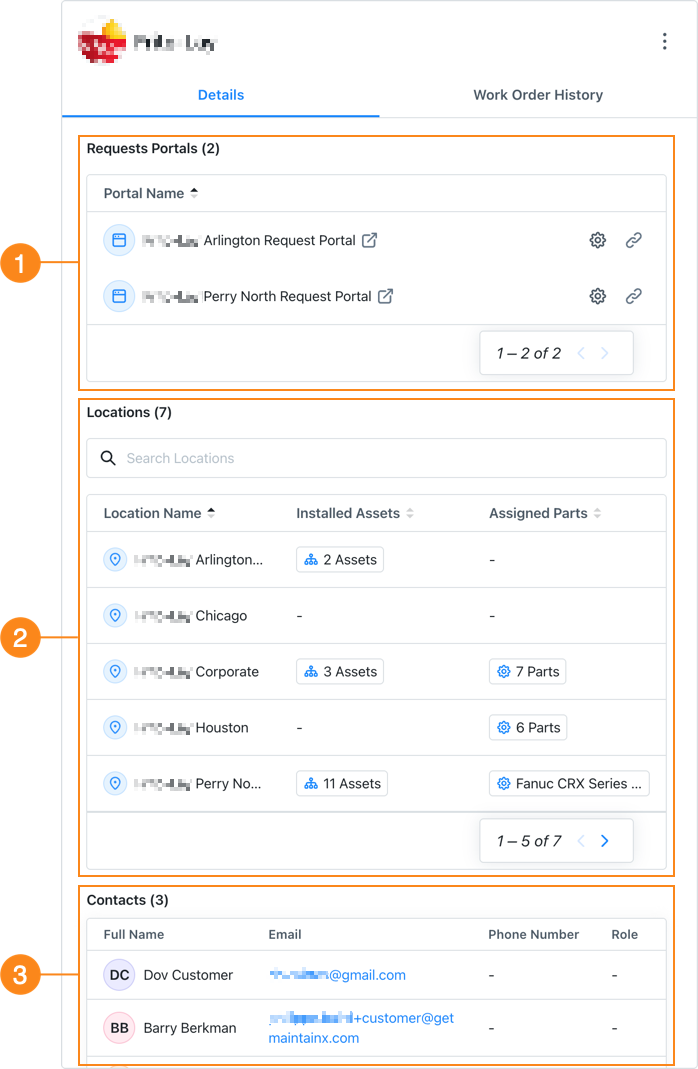
| Section | Description | |
|---|---|---|
| 1 | Request Portals | Lists all the request portals you created for the customer.
|
| 2 | Locations | Lists all the customer's locations and shows you whether each location has installed assets or assigned parts. Select a location to view it in the Locations module (see View and Filter Locations). |
| 3 | Contacts | Lists your contacts for the customer. |
View a Customer's Work Order History
View a Customer's Work Order History in the Web App
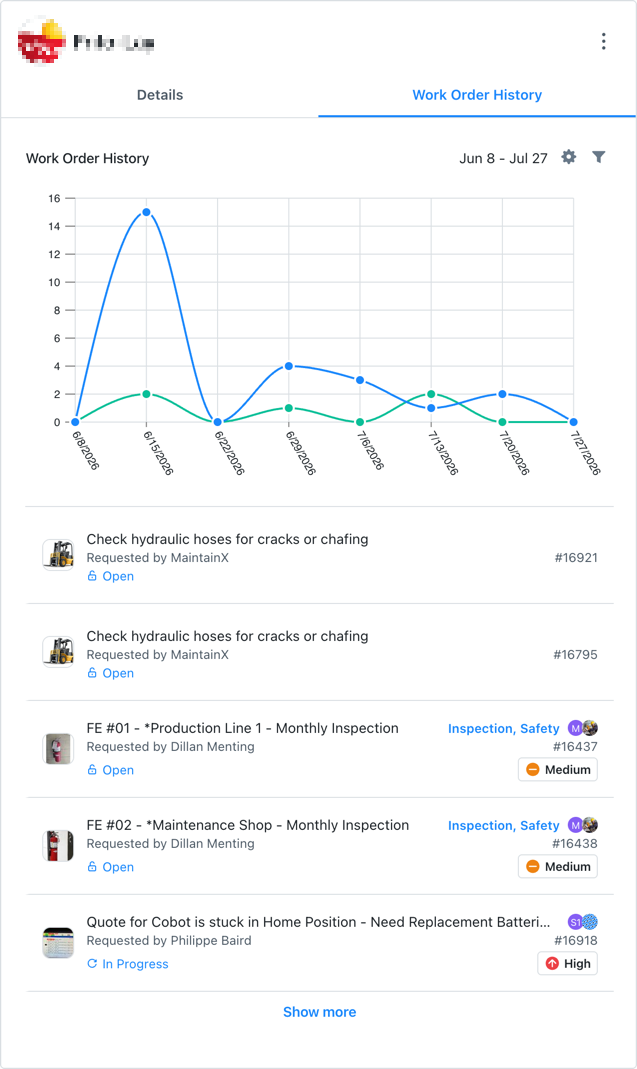
In the MaintainX web app, the work order history includes a list of work orders that you can filter and specify the date range for. You can also see a Created vs. Completed chart for the work orders in the list.
To view a customer's work order history:
- From the sidebar, select Customers.
- Select the customer whose work order history you want to see.
- In the details pane, navigate to Work Order History.
- Select the (settings) to change the date range for the work order history.
- Select the (filter) icon to filter the work orders included in the work order history. For example, you can filter by status or due date.
- Select Apply to enable the changes.
Work Order History Chart
Only Administrators can see the work order history chart. Full Users can't see the chart but can use filters to control which work orders appear in the work order history list.
The work order history chart shows the number of work orders created and completed in the date range.
-
Hover over any dot in the chart to see the total number of work orders created and completed for that period.
-
Select any dot in the chart to display a list of work orders for that specific period.
- You can toggle the list between Created and Completed work orders.
- Select any work order in the list to view its details.
Work Order History List
The customer's work order history list shows all the work orders for the customer in the date range, after any filters are applied.
- Select any work order to view its details.
- If there are too many work orders to fit on the page, select Show More.
View a Customer's Work Order History in the Mobile App
In the MaintainX mobile app, the work order history includes a list of work orders. The most recently updated ones appear first.
To view a customer's work order history:
- From the bottom navigation bar, select More.
- On the More Options screen, navigate to Product Features, and select Customers.
- On the Customers screen, select the customer whose work order history you want to see.
- On the Details screen, select the Work Orders tab.