Create a Maintenance Plan
| Platform: | AvailableWebNot availableMobile |
|---|---|
| Plan Type: | Not availableBasicNot availableEssentialAvailablePremiumAvailableEnterprise |
| User Type: | Not availableRequesterNot availableFull UserAvailableAdministrator |
This article explains how to create a maintenance plan and modify a scheduling horizon.
When you create a maintenance plan, it's important to keep in mind that you’re creating a work order template for the maintenance plan, which will generate future work orders based on that template.
To create a maintenance plan:
- From the sidebar, select Maintenance plans.
- Select + New maintenance plan.
- Enter a name for the plan. This field is required.
- In the Assets section, select the asset you want to create the maintenance plan for.
Add a Schedule
In the Schedule section, complete the following steps:
-
Select the schedule behavior:
Schedule Behavior Description Based on original schedule Follows the original schedule, regardless of when the work order is completed. Completing a work order early or late doesn't change the scheduled milestones of future work orders, allowing the schedule to remain consistent over time. For more information, see Fixed Intervals. Based on last completion Schedules future work based on the last completed work order. Each new maintenance milestone is calculated from the completion date of the previous work order, allowing the schedule to adjust over time. For more information, see Floating Intervals. -
Select the schedule type:
Schedule Type Description Time based Creates work orders based on time. Usage based Creates work orders based on meter readings. Time or Usage based Creates work orders based on time or meter readings, whichever comes first. This option can only be selected when the schedule behavior is Based on last completion. -
Depending on the schedule type selected, add the following:
Add Time Schedule
-
Select the recurrence for work orders the plan generates. This controls how often work order due dates occur.
-
Select the Work Order start date.
- The value you set here is an offset. MaintainX® calculates the start dates for generated work orders based on their due dates. For example, if you set a value of 3 days here, the start dates of all work orders generated by the plan will be 3 days before their due dates.
-
In the Initial schedule section, select the First work order due date.
- This due date is the anchor point for the maintenance plan. It determines how all future work orders are scheduled.
-
In the Scheduling Horizon section, select how far in advance this plan creates work orders. For more information, see Modify a scheduling horizon.
-
Select Confirm.
Add Usage Trigger
-
Select the meter.
-
Select the condition for the trigger.
-
Select the value for the trigger.
noteAfter configuring the trigger interval, you can adjust the next due meter reading to align the maintenance plan with your existing maintenance schedule. For example, if an asset is currently at 1,300 hours and your organization already plans to perform maintenance at 1,500 hours, you can set the next due reading to 1,500 instead of calculating the next interval from the current reading.
-
In the Create Work Order ahead by field, select how far in advance you want MaintainX to create the work order.
-
Select when you want to start the work. For example, 2 days before the due date.
-
Select when you want the work to be due. For example, 1 day after the creation of the work order.
-
Select Confirm.
Add Work Order Details
After you configure the schedule, complete the following steps:
-
In the Work Order details section, select + Add work order details to create the work order template for the plan.
-
When you're finished, select Save Template. MaintainX uses this work order template to generate a series of work orders according to the maintenance plan's schedule.
- (Optional) Select Add work at longer frequencies to create a nested preventive maintenance plan. For more information, see Create a Nested Preventive Maintenance Plan.
-
Select Create.
Once the plan is created and work orders are generated, you can schedule and assign individual work orders as needed. Any changes you make to a specific work order only apply to that work order. They don't affect the entire series.
Work orders generated from maintenance plans are non-recurring, but have their Work Type set to Preventive to indicate that they're part of a preventive maintenance plan.
Modify a Scheduling Horizon
Scheduling horizons allow users who plan and schedule work in the organization to manage work within a defined time frame. They specify how far in advance a maintenance plan creates work orders.
For example, let's say you create a maintenance plan with a weekly recurrence that generates a work order every Wednesday, and you set the scheduling horizon to four weeks. The maintenance plan will generate a total of five work orders: one for the current week and one for each of the next four weeks. You can plan and schedule those upcoming work orders ahead of time.
To modify a scheduling horizon:
- From the sidebar, select Maintenance plans.
- Select + New maintenance plan.
- In the Schedule section, select a Recurrence.
- In the Initial schedule section, in Advanced settings, select Advanced schedule settings.
- In the Advanced schedule settings panel, select the number of days or weeks you want to plan work in advance for. This will create work orders for the selected period of time depending on the schedule conditions you defined.
- Select Create.
After you update the scheduling horizon, it might take a few minutes for new work orders to appear in the system. Especially if the horizon is several weeks.
For a more visual representation of work orders generated by the scheduling horizon, use the views in the Work Orders module. Use the Calendar view for a monthly view, or Table view for a list.
Create a Nested Preventive Maintenance Plan
You can create nested PMs to manage multiple recurring maintenance work orders with different schedules within a single maintenance plan. For details, see Nested Preventive Maintenance.
-
In the Work Order details, select Add work at longer frequencies.
-
Create the work order template for the nested maintenance plan. Do one of the following:
- Choose the existing template to duplicate and edit.
- Choose Create from blank to create a new template.
-
When you're finished entering the relevant information, select Save Template.
-
Next to each template, use the Run Every field to set when the template will run.
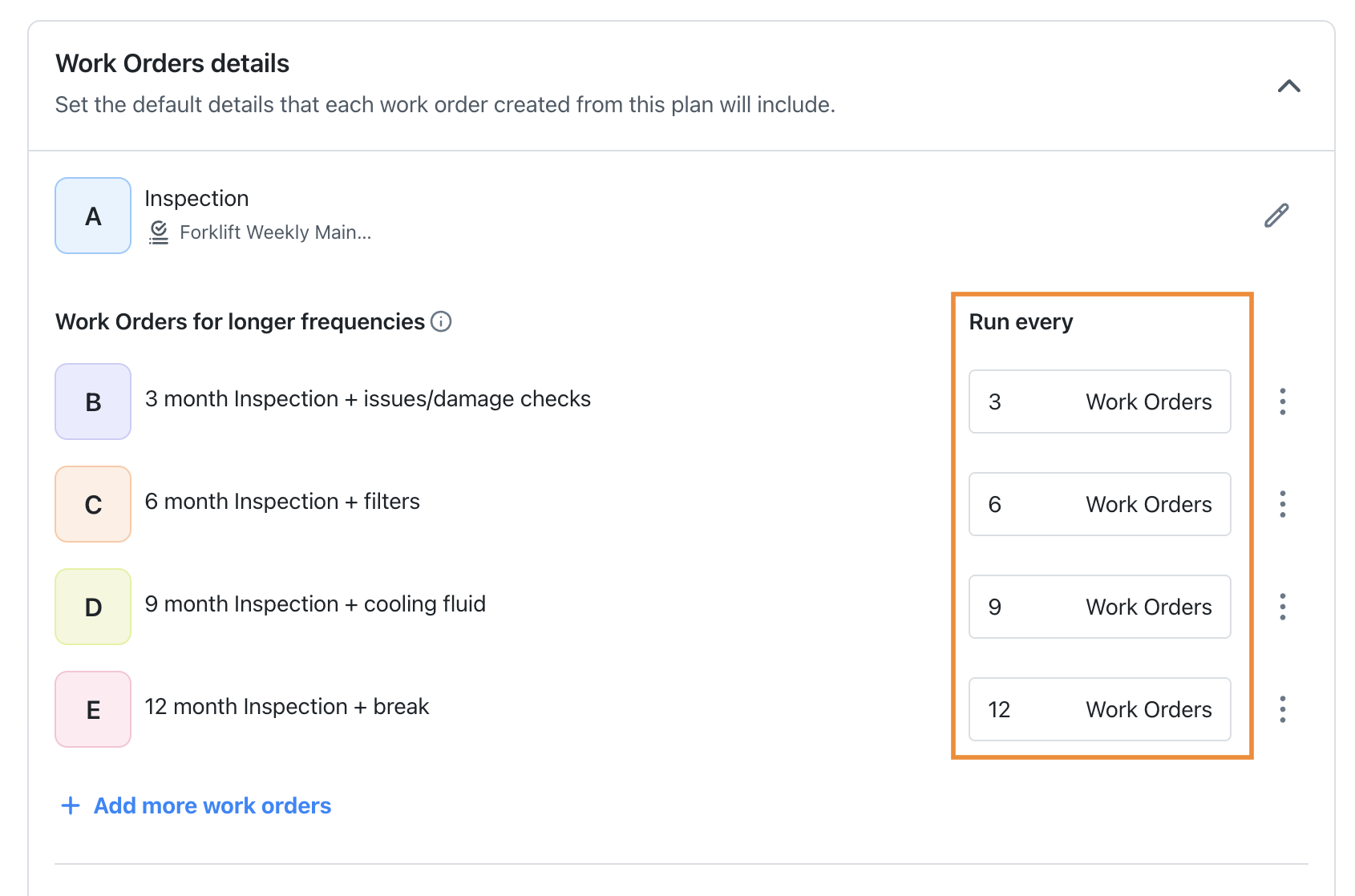
Work order frequency configuration highlighting the run-every settings for nested maintenance plans -
Repeat steps one through five as many times as your nested PM requires.
noteYou can add up to nine work order templates in addition to your base work order template, for a total of ten. Each work order template can have the Run every field set to a maximum of 100 work orders.
-
In the Edit maintenance plan start point section, select where the plan should start based on the asset's maintenance cycle. For more details, see Set a Starting Point for Your Plan.
-
If you want to preview the cadence of your maintenance plan, select Preview. The side panel opens and shows a list of upcoming work orders that your plan will generate. These work orders have not been created yet and will be generated based on the schedule you set.
Set a Starting Point for your Plan
You can also use the current maintenance state section to select which work order your plan starts on. This is useful when you set up a plan mid-year and need to align it with your actual maintenance schedule.
For example, if you set your plan in April, you might want to begin with the work order for month 4 instead of month 1. This ensures the correct work order is generated at each interval, such as the 6-month inspection in month 6.
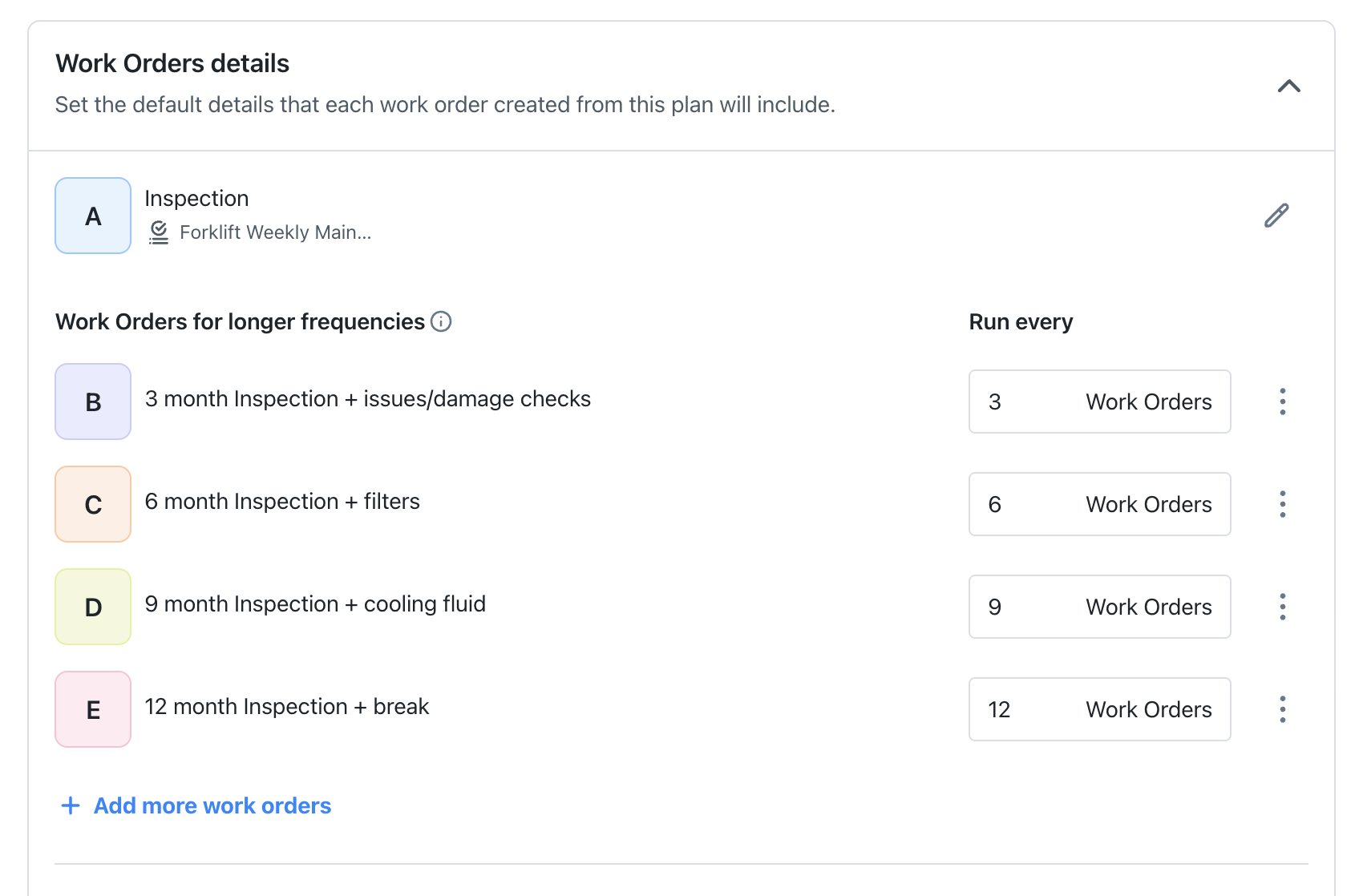

To set a starting point, select the label that corresponds to the work order you want to start your plan with. MaintainX will generate work orders from that point forward, following the cadence you set.
The work order labels, represented by letters, vary depending on the number of work order templates you create for the plan.
Duplicate a Maintenance Plan
Another way to create a maintenance plan is to duplicate an existing one. When you duplicate a plan, MaintainX creates a copy with the same details. You can review and modify the details before saving the duplicate as a new maintenance plan. Duplicating a plan does not affect the original plan.
To duplicate a maintenance plan:
- From the sidebar, select Maintenance plans.
- Locate the maintenance plan you want to duplicate, and select it to view its details.
- Select (more options).
- Select Copy to new plan.
- Edit the fields as needed.
- When ready, select Create.
Once the plan is created and work orders are generated, you can begin scheduling and assigning individual work orders as needed. Any changes you make will apply only to that specific work order and will not affect the entire series.