Map Tags to Meters
| Platform: | AvailableWebNot availableMobile |
|---|---|
| Plan Type: | Not availableBasicNot availableEssentialAvailablePremiumAvailableEnterprise |
| User Type: | Not availableRequesterNot availableFull UserAvailableAdministrator |
Requirements
Smart tag mapping requires a supported operational technology (OT) data solution (e.g., Ignition®, Kepware®, or MQTT) with a MaintainX® OT data connector configured for that solution.
If you have an existing OT connector instance that uses the auto-create meters feature, smart tag mapping won't be available for that connector instance. For more information, contact your MaintainX representative.
Get Better Suggestions
Suggestion quality depends on how your OT tags are named and organized. Before you start mapping, consider the following:
- Group related tags in a relevant folder or path in your OT system.
- Name tags similarly to their corresponding asset names in MaintainX.
- Include the type of measurement in the tag name (e.g., temperature, vibration, runtime).
- Make sure the asset already exists in MaintainX before you map a tag to it.
Clear, consistent tag names give MaintainX more to work with, resulting in higher-confidence suggestions. Inconsistent naming, or tags with no clear connection to an asset, may result in lower-confidence suggestions or require more manual review.
The Tag Management Tool
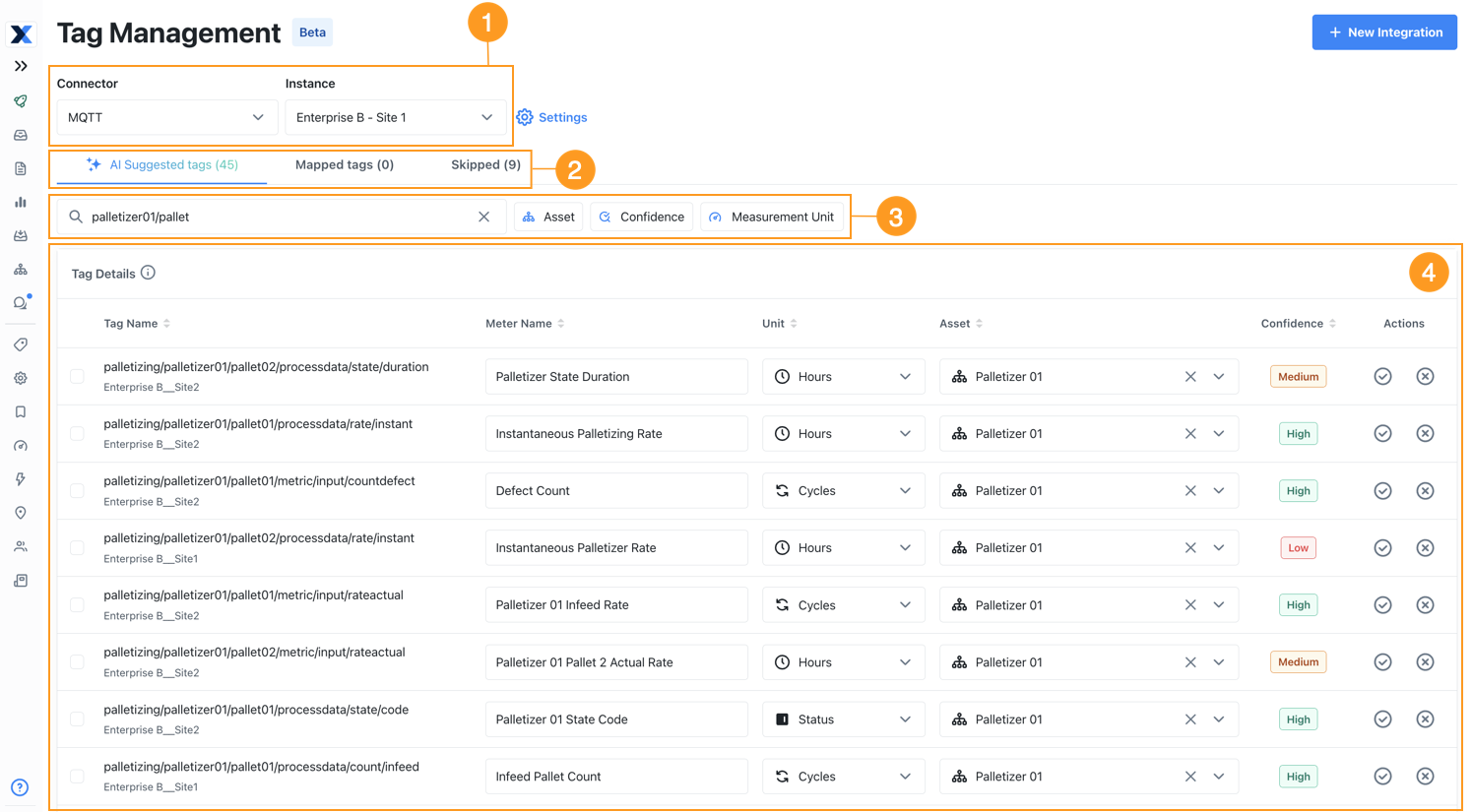
The tag management tool is where you review smart tag mapping suggestions, and create meters to map your OT data tags to assets.
| Options | |
|---|---|
| 1 | Choose the OT connector instance whose tags you want to manage. |
| 2 | Switch between suggested tag mappings, completed mappings, and skipped suggested mappings. |
| 3 | Use the search and filter options to narrow the list of tags so you can review and edit them more easily. For example, use a filter to find all the high confidence matches, or search to find all the tags for a specific machine. The search can use the full path in the Tag Name field, which can be helpful for isolating specific groups of tags. |
| 4 | The Tag Details table lists tags from the selected connector instance. You review and edit tag mappings here. |
To open the tag management tool:
-
From the sidebar, select Settings. Under Organization Settings, select Integrations.
The Integrations page opens.
-
On the Integrations page, select the Connectors tab.
-
In the Configured Connectors section, locate the connector you want to manage tags for.
-
Select Manage. The connector details dialog opens.
-
In the connector details dialog, do one of the following:
-
Select Manage Tags.
-
In the Instances list, select an instance. The Manage Instance dialog opens.
Navigate to the banner that notifies you about matching tags, and select Manage Tags.
-
You can also open the tag management tool from the Meters page. From the sidebar, select Meters. Locate the banner that notifies you about matching tags, and select Review suggestions.
If you dismiss the banner, it reappears after 24 hours.
AI Suggested Tags
The MaintainX smart tag mapping system uses AI to analyze the OT data tags you make available through your organization's OT data connectors.

For each tag, the AI suggests:
- A meter name and unit 1 to represent the data in MaintainX.
- An asset 2 in your MaintainX organization to associate the meter with.
Every suggestion has a confidence rating 3. Lower-rated suggestions require more careful review.
| Confidence Level | Description |
|---|---|
| High | Strong confidence in the mapping. Minimal uncertainty. |
| Medium | Moderate confidence. The mapping is likely correct, but there might be alternatives. |
| Low | Some confidence, but significant uncertainty exists. |
| Not Scored | No confidence. Minimal evidence for mapping. MaintainX won't suggest a meter or asset for these items. |
If you need to, you can edit a suggestion before you accept or skip it 4. For more information, see Review Suggested Tags.
If MaintainX can't provide a confidence rating, it marks the suggestion as Not Scored and doesn't suggest a meter or associated asset. You can edit unscored suggestions to add that data yourself.
Mapped Tags
When you accept a suggestion on the AI suggested tags tab, MaintainX creates the meter and associates it with the suggested asset. The tag is now mapped, and appears on the Mapped tags tab. You can edit mapped tags from this tab. For example, you can rename their meter or associate it with a different asset. For more information, see Edit Tags and Suggestions.
Skipped Tags
When you skip a suggestion, MaintainX moves it to the Skipped tags tab. You can edit and accept skipped suggestions any time to map the tags. For more information, see Edit Tags and Suggestions.
Choose a Connector Instance to Manage
Your organization might have more than one OT connector set up (for example, an Ignition connector and an MQTT connector). Each connector might have more than one instance. Each connector instance has its own set of tags that you can map to assets.
If you have multiple connector instances set up, choose the one you want to work with by first selecting a Connector and then selecting an Instance.
The Tag Details table updates to show the tags for that specific connector instance.
Review Suggested Tags
Use the tag management tool to review the tags that MaintainX suggests mapping to your assets.
-
Select the Connector and Instance whose tags you want to map to assets in MaintainX.
-
Select the AI suggested tags tab.
-
In the Tag Details table, review the suggestions. For each tag, make sure that:
- The tag is mapped to the right Asset.
- The suggested Unit is appropriate for the data source.
- The suggested Meter Name makes sense.
You can edit suggestions individually or in bulk to correct any of those fields as needed. For more information, see Edit Tags and Suggestions.
-
For each suggestion, select one of the following options in the Actions column:
-
Create Meter: Accepts the suggestion, and moves the row to the Mapped tags tab.
MaintainX adds a new automated meter in the Meters module, and associates the meter with the selected asset. For more information about automated meters, see About Meters.
-
Skip Suggestion: Moves the suggestion to the Skipped tags tab, where you can edit or accept it later.
tipYou can also accept or skip multiple suggestions at once. For more information, see Bulk Accept or Skip Suggestions.
-
Bulk Accept or Skip Suggestions
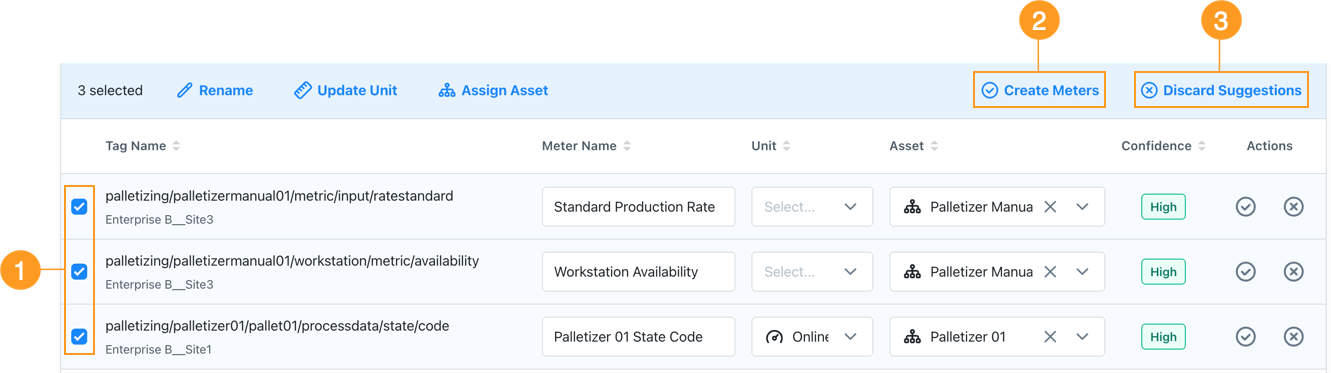
You can accept or skip multiple suggestions at the same time.
- Select the checkbox 1 next to each suggestion.
- From the table header, select Create Meters 2 or Discard Suggestions 3.
Edit Tags and Suggestions
You can change the following information for any suggested tag on the AI suggested tags and Skipped tags tabs before you accept the suggestion and create the meter.
- Meter Name
- Unit
- Asset
Update any of these values directly in the tag's table row. When you accept the suggestion and create the meter, MaintainX uses the updated information.
After you accept a suggestion, you can update the same information from the Mapped tags tab.
Locate the tag you want to edit, and select the (pencil) icon in the Action column. Make the required changes and select the (check) icon to save them.
MaintainX updates the meter and associated asset to reflect your changes.
If you update a meter that's mapped to an OT data tag from the Meters module, or change its associated asset, those changes are reflected in the tag management tool.
Bulk Edit Tags and Suggestions
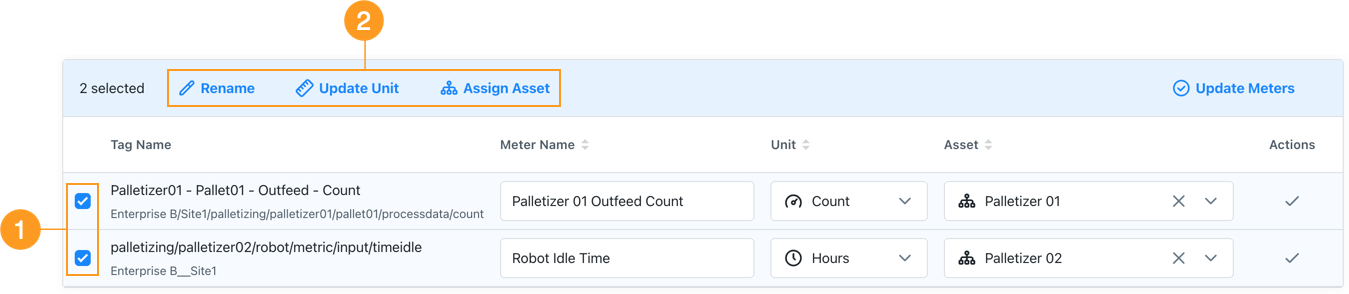
You can update multiple suggestions or mapped tags at the same time. For example, if a connector brings in dozens of tags from the same machine, you can add the same prefix to all of their meter names or assign them all to one asset in a single operation.
-
Select the checkbox 1 next to each suggestion or tag.
-
From the table header, select one of the following options 2:
Action Description Rename Add a prefix or a suffix to the Meter Name for every selected tag.
Selecting this option opens the Rename Meters dialog.- Choose Add Prefix or Add Suffix.
- Type the prefix or suffix text.
- Select Apply Changes.
Update Unit Change the Unit that the meter for each selected tag uses.
To bulk change the unit for mapped tags, all the selected tags' meters must use compatible units of measurement.
Let's say you select 10 tags:- If their meters all use number values, such as distance or volume, you can bulk edit their unit.
- If half of them use number values, and the other half use Boolean (on/off) values, you can't bulk edit them because their units of measurement aren't compatible.
Assign Asset Change the asset assigned to the meter for every selected tag. When you confirm the operation, MaintainX updates the Tag Details table with your changes.
-
Apply your changes:
- For suggestions, you can select Create Meters to create the meters with the updated information.
- For mapped tags, select Update Meters to apply the changes in your organization.