Custom Work Rotations
| Platform: | AvailableWebNot availableMobile |
|---|---|
| Plan Type: | Not availableBasicNot availableEssentialNot availablePremiumAvailableEnterprise |
| User Type: | Not availableRequesterNot availableFull UserAvailableAdministrator |
About Custom Work Rotations
Custom Work Rotations let Administrators create recurring work schedules that extend beyond a standard seven-day week. Whether your organization follows a 4-on/4-off schedule, a Pitman schedule (2-2-3 rotation), a 6-on/3-off cycle, or another custom pattern, you only need to configure the rotation once. MaintainX® then automatically applies the schedule to generate work according to the defined rotation, making it easier to support teams with non-weekly work schedules.
Custom work rotations can span up to 30 days and support future start dates, allowing users to remain on their current schedule until the new rotation automatically takes effect.
Each rotation defines the number of hours a user is available to work each day, but doesn't specify shift start or end times. A user can be assigned to either the default weekly schedule or a custom work rotation, but not both.
You can only assign custom work rotations to individual users, not teams.
You can create a custom role that grants users permission to view, create, edit, and delete custom work rotations. For more information, see Custom Role Permissions.
Create a Work Rotation
-
From the sidebar, select the Settings menu, and select Manage Teammates.
-
On the Manage Teammates page, select the Rotations tab.
-
Select + New Rotation.
-
On the New Rotation page, enter a name for the rotation.
-
In the Starts at field, select when you want the rotation to start.
-
Select one of the following:
- Select a default pattern of work rotation.
- Select Custom pattern. For more information, see Create a Custom Pattern.
-
In the Users section, select Add Users to add members of your organization to this rotation.
-
In the Add users to the rotation dialog box, select the users you want to add from the drop-down.
noteOnly users with the Schedulable Users option enabled appear in the user selection list when assigning a custom work rotation. For more information, see Scheduling Capacity.
-
Select Add [N] users to confirm.
-
Select Create rotation.
The work rotation is created.
Use the Workload view to quickly see the work rotations you’ve created and the users assigned to each rotation.
Create a Custom Pattern
You can create a custom pattern for a schedule if none of the default options meet your organization's needs.
To create a custom pattern:
-
Select Custom pattern.
-
Select Add day.
-
In the Day field, select if the day is a Working day or a Non-working day.
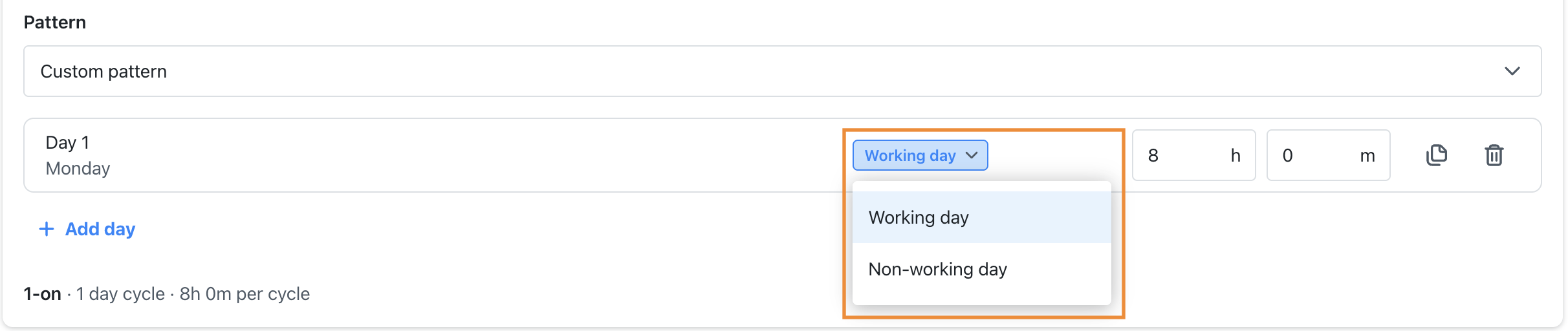
Day field -
Select the number of hours. These are the hours per working day.
-
Select (copy) to reproduce the same parameters for the next day.
-
Select + Add day until you have the rotation schedule of your choice.
-
(Optional) If you want to delete the parameters of the day, select (delete) to delete it.
Edit a Work Rotation
- From the sidebar, select the Settings menu, and select Manage Teammates.
- On the Manage Teammates page, select the Rotations tab.
- Locate the work rotation you want to edit, and select it to view its details.
- Update the work rotation’s information as needed.
- Select Update.
- When prompted, select Save Changes.
After you save your updates, they will update the rotation for all users assigned to it. Previous weeks won’t be affected.
Duplicate a Work Rotation
- From the sidebar, select the Settings menu, and select Manage Teammates.
- On the Manage Teammates page, select the Rotations tab.
- Select the work rotation you want to duplicate to view its details.
- Select (more options).
- Select Copy to a new rotation.
- Edit the work rotation as needed.
- Select Create rotation.
Delete a Work Rotation
- From the sidebar, select the Settings menu, and select Manage Teammates.
- In the Manage Teammates page, select the Rotations tab.
- Locate the work rotation you want to delete, and select it to view its details.
- Select (more options).
- Select Delete rotation.
- When prompted, select Delete rotation to confirm.
The work rotation is deleted. Users in the deleted rotation will be moved back to the default rotation.