Global Dynamic Asset Fields
| Platform: | AvailableWebNot availableMobile |
|---|---|
| Plan Type: | Not availableBasicNot availableEssentialNot availablePremiumAvailableEnterprise |
| User Type: | Not availableRequesterNot availableFull UserAvailableAdministrator |
This article is for Beta participants. It gives an overview of how to configure custom asset fields for a global organization and publish those fields to sub-organizations. The feature may still change before general availability.
What's New
- Create custom fields at the global organization level and share them with local sub-organizations. For more information, see Create Global Custom Fields.
- Conflict management during publishing for fields with the same name. For more information, see Resolve Duplicate Fields.
- Only the Global Organization can edit or delete a published global field. Edits are automatically propagated to every sub-organization that uses it. For more information, see Edit Global Custom Fields.
- Filter custom fields by organization, field type, and global or local status. For more information, see Filter Global Custom Fields.
- Global custom fields integrate directly into local asset types, so required fields stay locked wherever the asset type is used. For more information, see Use Global Custom Fields with Asset Types.
Requirements
To use global asset fields, you must:
- Have a Global Organization with at least one sub-organization. For more information, see About Global Organizations.
- Have a Global Leader user role. For more information, see The Global Leader User Role.
Navigate to the Global Custom Asset Form
To set up global asset fields, you must be in your global organization:
- From the sidebar, select the Global Settings menu.
- Select Features. The Features page opens.
- In the Assets section, select Set Preferences. The Assets page opens.
- Navigate to the Customize Asset Form section.
Create Global Custom Fields
To create a new global asset field:
- In the Customize Asset Form section, select Custom Fields. The Asset fields page opens.
- On the Asset fields page, select + New Custom Field.
- Enter a Field Name. The new field name should be unique. Prompts will inform you if the field name is available or if it already exists.
- Select a Field Type.
- Select Make this field required if this asset field should be required on all asset forms.
- Select Create.
The new field is created at the global organization level. However, it isn't shared with your sub-organizations until you publish it.
Publish Global Custom Fields
Publishing shares a global custom field with your sub-organizations.
To publish a global custom field:
- If the field is newly created, the details page of the field opens.
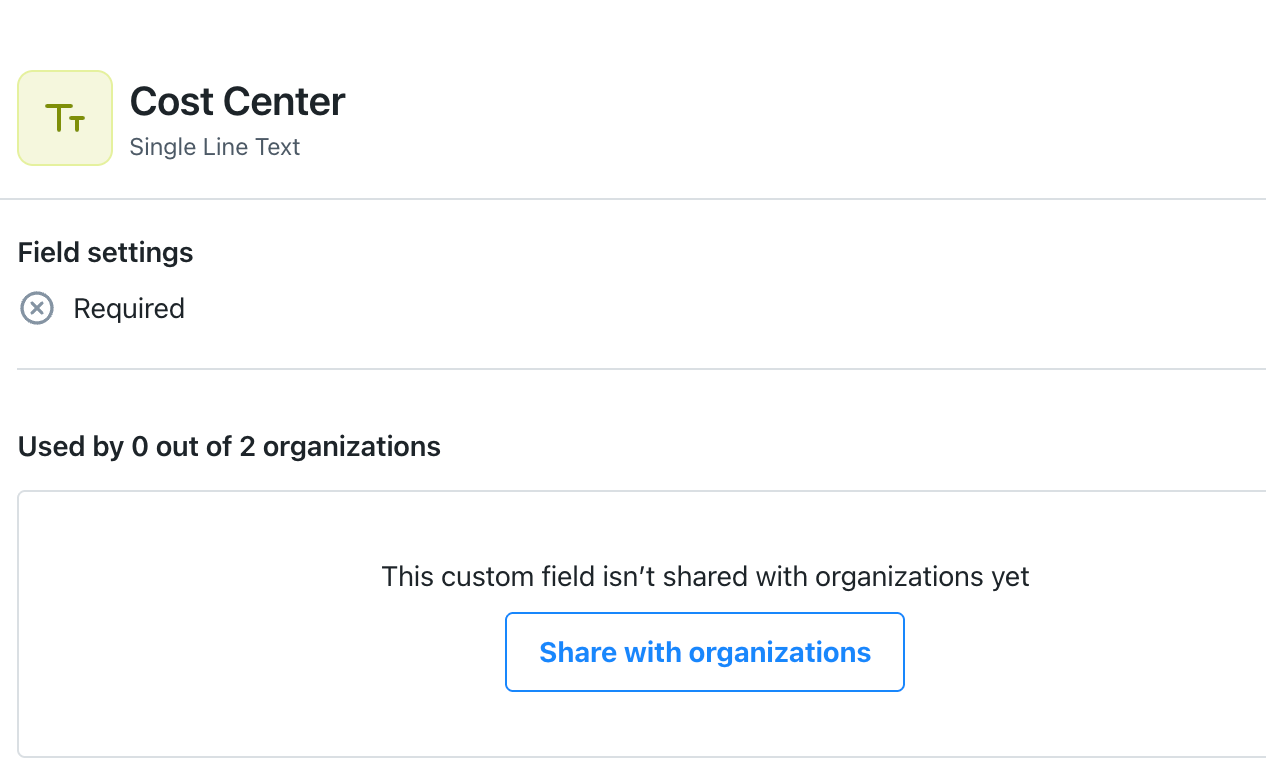
- Select Share with organizations. The Manage assignments page opens.
- Select the sub-organizations you want to share the asset field with. You can also Select all organizations or Search for organizations that aren't listed.
- (Optional) Select Automatically add new organizations if you want any new sub-organizations you create to automatically use this asset field.
- When you have selected all the sub-organizations that will use the custom field, select Next.
- Select Publish to add the custom field to the asset form of each selected organization.
After you publish, the field appears as a global field in every selected sub-organization. Required can be set by a local organization if it wasn't set by a global organization. However, it can't be edited or deleted by the local organization, it can only be edited or deleted by the global organization.
If a sub-organization already has a local field with the same name, you can review and resolve any conflicts. For more information, see Resolve Duplicate Fields.
Resolve Duplicate Fields
When you publish a global custom field, MaintainX® checks whether any sub-organization already has a local field with the same name.
To resolve a duplicate field:
- When MaintainX detects a published field with the same name in a sub-organization, the Review duplicates page opens automatically.
- Review the conflicting local custom field(s) and the sub-organization(s) they belong to.
- You can decide if you want to standardize them into global field.
- Select Continue.
- Select Publish to standardize the local field into a global field. This preserves existing data, but the assets using this field will now follow the global field.
The global custom field will always take precedence over the local custom field. In the sub-organization, the custom field is visible in the Custom Fields tab of the Asset Fields page, but is now managed by the global organization. Any custom fields managed by the global organization are noted as such with an icon. For more information about local organizations and dynamic asset forms, see Dynamic Asset Forms.
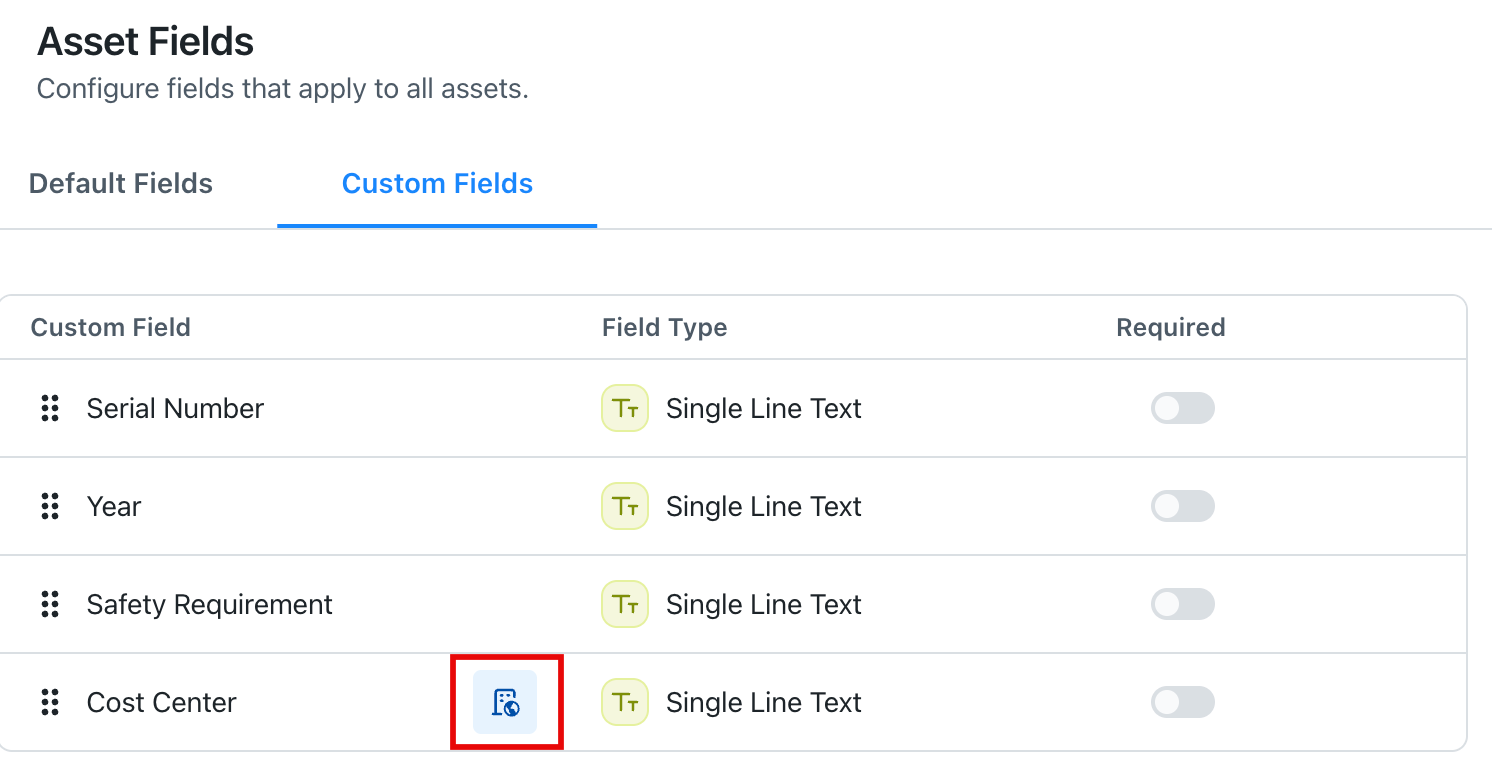
Edit Global Custom Fields
Only global organizations can edit a published global custom field.
To edit a global custom field:
- Select the custom field you want to edit. The details page of that field opens.
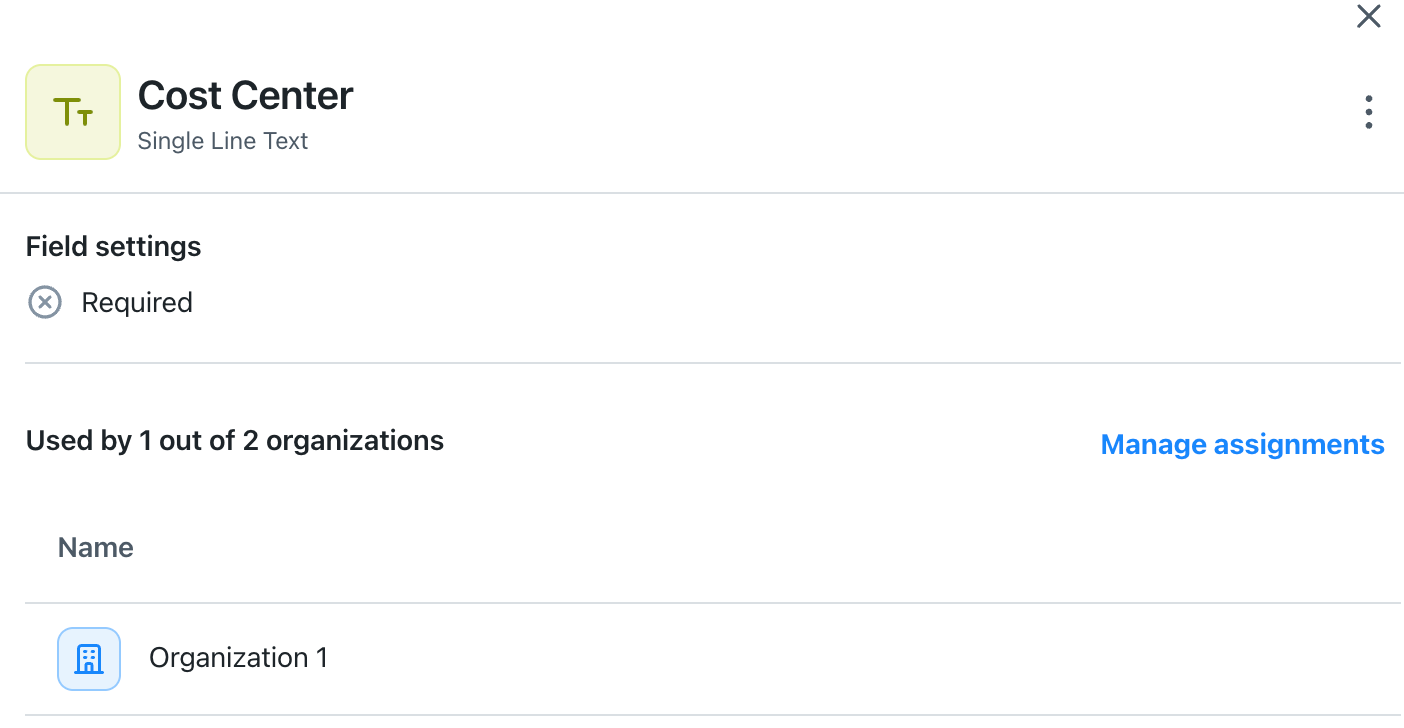
- To edit the Field Name, Field Type, or change if the field is required, select (more options) and select Edit.
- Make the changes and select Save.
- To change the sub-organizations the custom field is shared with, select Manage assignments.
- Edit the shared organizations and select Next.
- Select Publish to save the changes.
Any sub-organizations using the field are updated automatically and do not need any action taken in the sub-organization.
Delete a Global Custom Field
Deleting a global custom field removes the field from all organizations.
To delete a global custom field:
- From your list of Asset fields, navigate to the field you want to delete.
- Select (more options).
- Select Delete. The Delete custom field page opens.
- You can choose from two options:
- Delete everywhere: This option removes the field from the global organization and all sub-organizations.
- Convert to local fields: This option removes the field from the control of the global organization.
- Select Delete.
Depending on your choice, the field is either removed from all organizations, or reverted to a local field.
Filter Global Custom Fields
Use the filter options on the Asset fields page to narrow the fields list by:
- Organization
- Global vs. local status
- Field type (for example, single-line text, multi-line text, or number)
Use Global Custom Fields with Asset Types
Global custom fields integrate directly into local asset types. When a global field is required, it stays required and locked wherever it's used, meaning local organizations can't remove it from an asset type. A local organization can set a global field to required for its own asset types even if the field isn't required globally. However, it can't make a required global field optional.
To use a custom field with asset types:
- From the sidebar, select the Global Settings menu.
- Select Features, then in the Assets section, select Set Preferences. The Assets page opens.
- In the Preference section, select Asset Types.
- Select + New Asset Type.
- Enter a name for the new asset type.
- Select fields from the available asset fields.
- Select Create.
The new asset type is created. For more information about global asset types, see Global Asset Types.