Part Statuses and Part Availability
| Platform: | AvailableWebAvailableMobile |
|---|---|
| Plan Type: | Not availableBasicNot availableEssentialAvailablePremiumAvailableEnterprise |
| User Type: | Not availableRequesterAvailableFull UserAvailableAdministrator |
This article explains what part statuses and part availability are, as well as how they appear across part details and work orders.
To enable and configure part statuses and part availability, see Enable Part Statuses and Part Availability.
About Part Statuses
Part statuses enable a standardized inventory workflow that helps teams determine if a work order is ready to execute. By providing visibility into each part’s lifecycle, teams can reduce wasted trips, delays, and rescheduling.
As parts are prepared for a job, the status is updated to reflect where each part is in the process.
Part Status Workflow
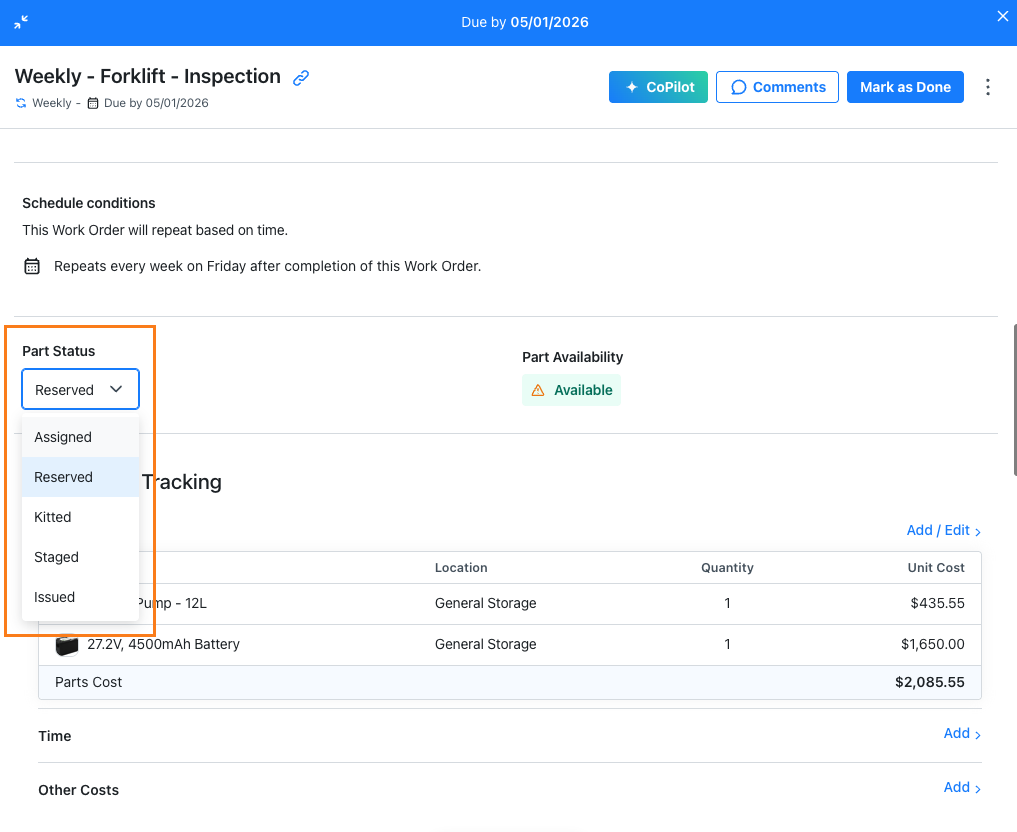
- Assigned: Required parts are identified and added to the work order.
- Reserved: Parts are committed to the work order and removed from available quantities.
- Kitted: Parts are picked and grouped for the job.
- Staged: Parts are placed in a pickup or staging area for the technician.
- Issued: The technician has received the parts and can execute the work order.
Calculating Committed Stock
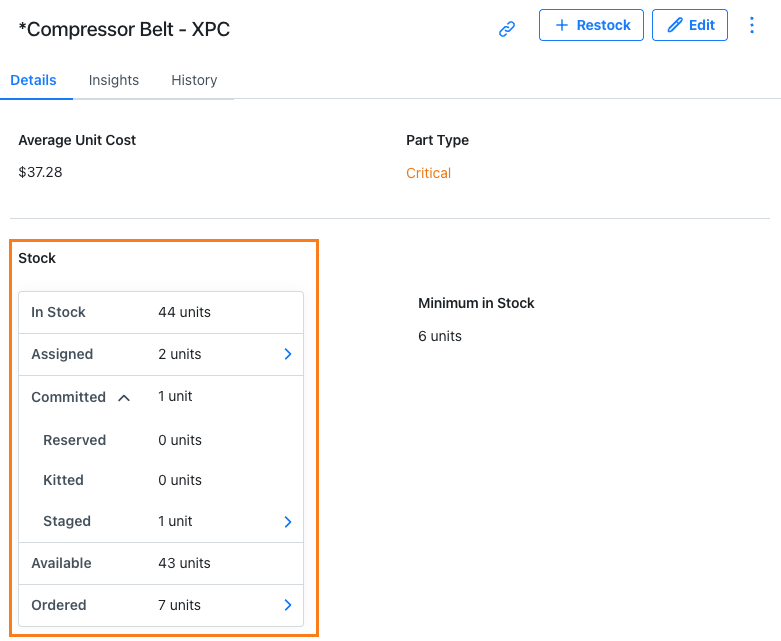
Committed stock represents inventory that's been set aside for active work. Committed stock includes parts with the following statuses:
- Reserved
- Kitted
- Staged
Parts that are Assigned aren't included in committed stock. This prevents work orders scheduled in advance from inflating reserved quantities or distorting inventory availability. Separating Assigned from Reserved ensures that parts are only considered committed when they are actively reserved for a work order.
To automate this process, you can configure the Assigned Quantity Window and Auto Reserve Window in Parts Inventory Settings. These settings determine when parts are included in the Assigned quantity count in the part details tab, and when parts are automatically marked as Reserved based on how close a work order is to its start or due date. For details, see Parts Inventory Settings.
Calculating Available Quantities
Available quantities are the number of units you have in stock, minus any units committed to upcoming work orders.
Available quantity is calculated as:
Available = In Stock - Committed Stock
Issued Parts and Inventory Adjustments
Parts can be issued before a work order is marked as complete, ensuring that in-stock quantity accurately reflects parts that have already been used or distributed.
In-stock quantity is reduced when parts are issued, either by updating the part status to Issued or by closing a work order. Closing a work order automatically marks any remaining parts as Issued and subtracts them from in-stock quantities.
If a part is removed from a work order, it's marked as Available and its available quantity increases. This makes sure inventory levels are accurate and aligned with what's being used on the job.
Part Statuses in Work Orders
Work orders include a Part Status field. The part status you set at the work order level applies to all parts associated with the work order.
| Status | What this means | How this status is set | What changes in inventory |
|---|---|---|---|
| Assigned | Parts needed for the work have been identified and added to a work order. | Set automatically when part(s) are added to a work order. | No change to Available or In Stock quantities. |
| Reserved | Parts are now committed to the work order and shouldn’t be used elsewhere. | Set manually by a parts clerk or planner, or automatically when the auto reserve window is triggered because the work order is nearing its start date or due date. | Parts are committed and Available quantities are reduced. In Stock quantity remains the same. |
| Kitted | Parts are physically picked and grouped together to complete the work. | Set manually by a parts clerk or planner in the part status dropdown. | Parts remain committed. In Stock quantity remains the same. |
| Staged | Parts are placed in staging or pickup area for the technician and the job is now parts-ready. | Set manually by a parts clerk or planner in the part status dropdown | Parts remain committed. In Stock quantity remains the same. |
| Issued | Technician has the parts on hand and is ready to execute the work. | Set manually by a technician or parts clerk, or automatically when the work order is marked as done. | Parts are consumed and In Stock quantity is reduced. |
Part Statuses in Part Details
In a part's Details tab, you can view the number of units with each part status to quickly see how inventory is allocated.
About Part Availability
Part availability gives an at-a-glance view of whether a work order is ready to begin. Availability is displayed on the work order as Available, Partial, or Unavailable and automatically recalculates when inventory or part statuses change.
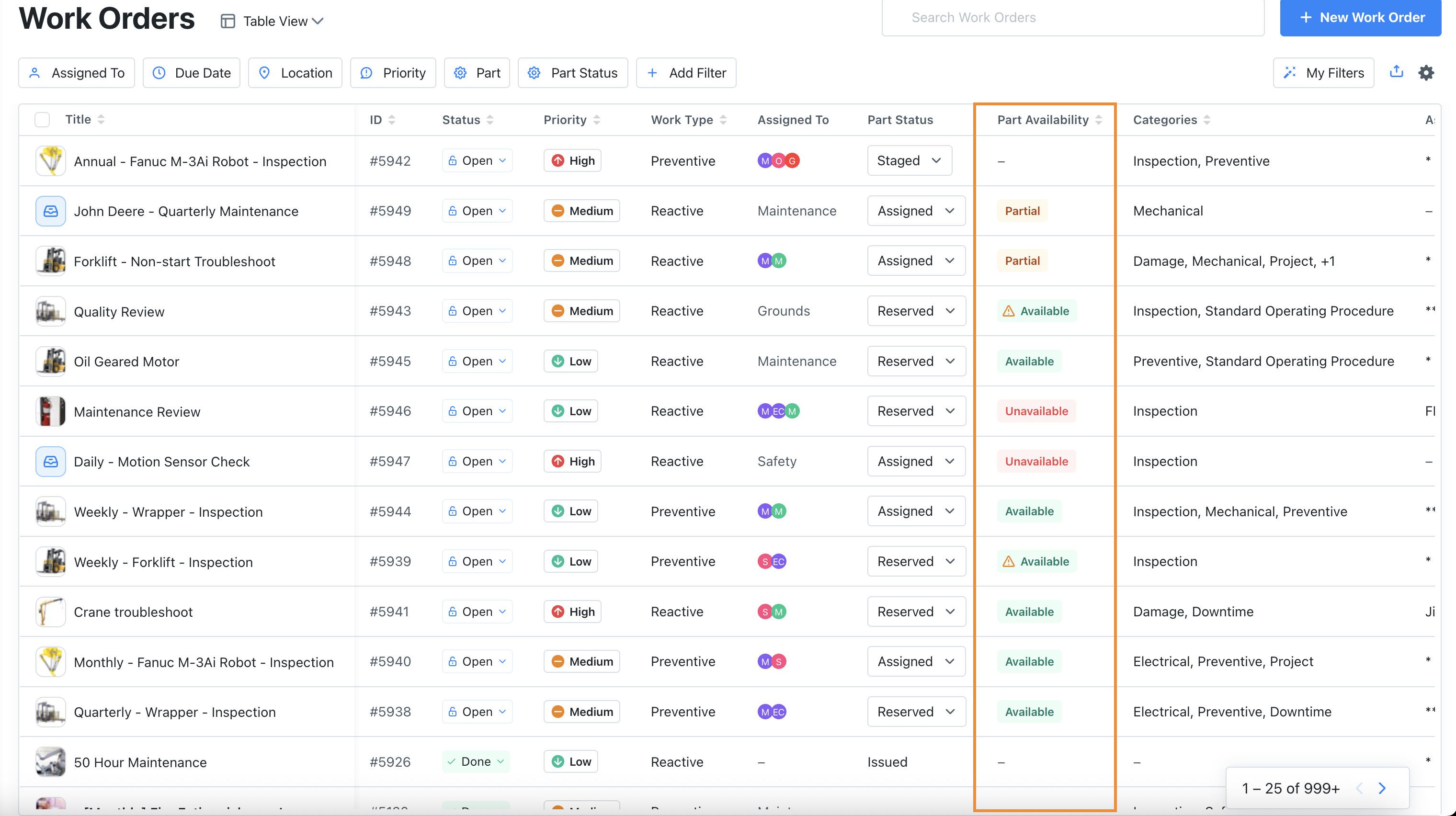
Work orders display one of the following part availability statuses:
| Availability | What this means |
|---|---|
| Available | All required parts for the work order are available. |
| Partial | Some required parts for the work order are available. |
| Unavailable | None of the required parts for the work order are available. |
If you don't see the Part Status or Part Availability columns in the Work Orders table, double check your table view settings. You may need to update your work order table configuration see them. For more information, see View and Filter Work Orders.
Calculating Part Availability
Part availability is determined by the work order's current part status. To learn more about part statuses, see Part Statuses.
- For Assigned work orders, a part is considered available when its Available quantity is greater than or equal to the Required quantity for the work order.
- For Reserved work orders, a part is considered available when the total In-stock quantity is greater than the total Committed stock across all work orders.
Managing Overcommitted Parts
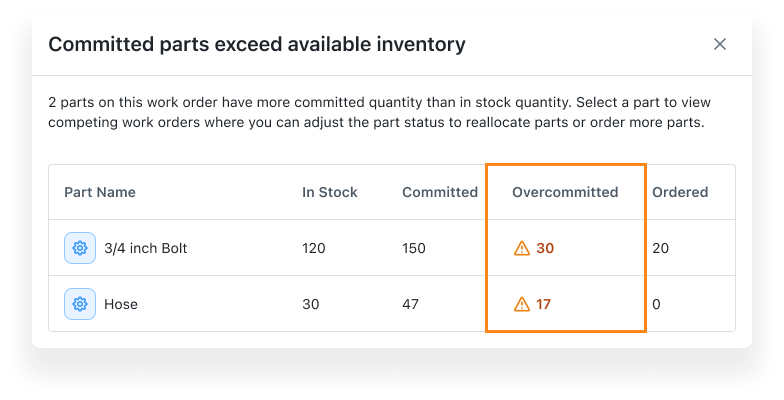
When updating the part status on a work order from Assigned to Reserved, MaintainX® checks if reserving parts will cause overcommitment. Overcommitment occurs when the total quantity of parts with the status Reserved, Kitted, and Staged across all work orders exceeds the available In Stock inventory.
If reserving parts would create an overcommittment, you can do any of the following:
- Free up inventory by deprioritizing other work orders and marking their status as Assigned.
- Order additional parts to cover the shortage.
- If your company has more than one MaintainX organization, request parts from another organization to meet demand. For details, see Share Parts Between Organizations.
Competing Part Commitments
A warning icon next to Available means multiple work orders are competing for the same parts. Reserving the parts for this work order may reduce availability for another work order that has already reserved them.

Selecting the warning opens a detailed view showing which work orders are competing for the same inventory and what quantities are currently committed.