About Location Check-In
| Platform: | AvailableWebAvailableMobile |
|---|---|
| Plan Type: | Not availableBasicNot availableEssentialAvailablePremiumAvailableEnterprise |
| User Type: | Not availableRequesterAvailableFull UserAvailableAdministrator |
Location check-in is a feature that requires technicians to verify they're physically present at a specific location before they can complete steps in a work order procedure.
When a procedure has a location check-in step, MaintainX® compares the technician's GPS coordinates to the required location and confirms they're within a set distance before allowing them to proceed. A location check-in lets you confirm that technicians are on-site when completing work at a specific location.
How Location Check-In Works
A location check-in involves two parts:
- Administrators and managers set up the Location Check-In step in a procedure template. Next, they configure the check-in location and buffer distance when the procedure is added to a work order. For more information, see Configure Location Check-In.
- Technicians then complete the check-in step when executing the work order. For more information, see Complete a Location Check-In
Configure Location Check-In
A location check-in requires a few one-time setup steps completed by an administrator or manager before technicians can start using it in work orders.
-
Make sure your locations have valid addresses. A check-in requires that the check-in location has a valid street address. If a location has map coordinates but no valid address, it can't be selected as a Check-In Location when configuring a procedure in a work order. If you don't have an exact address for a location, enter the closest available address as the location's GPS coordinates, not the address itself, are used to determine the actual check-in point. It is best practice before setting up a location check-in, you verify that the relevant locations in your organization have complete addresses saved. For more information, see Create a Location.
-
Add a Location Check-In step to a procedure template. Add the Location Check-In step in the procedure template editor. Then configure the location source (a saved location, the work order's location, or specific coordinates) and the default buffer distance. For more information on creating a procedure template, see Create a Procedure From Scratch.
Create a procedure with AI Procedure GeneratorYou can use the MaintainX procedure generator to create a procedure. For more information, see Create a Procedure with AI Procedure Generator.
-
Enter a Field Name.
-
Select the Check-In Area. Choose how to determine the check-in location when this procedure is used in a work order:
- From Locations: Pre-selects a saved location from your organization's location library. The person creating the work order can override this.
- Choose when creating a work order: Uses the work order's location. The person creating the work order can confirm or change the location.
- Coordinates: Enter a latitude and longitude manually, or pick a point directly on a map.
-
Specify a Buffer. The maximum distance (in meters) a technician can be from the required location and still check-in successfully. The default is 10 meters.
-
You can add sub-steps to a Location Check-In step that only appear based on if the check-in was completed or skipped. If you add sub-steps, the first level becomes visible to the technician before they complete the check-in, so they can prepare tools or materials in advance (sub-steps nested deeper than the first level aren't shown early). If you'd rather steps not be revealed ahead of time, add them as regular following steps instead of nesting them under the check-in step. Those steps stay hidden until the check-in is complete.
-
Select Save.
-
-
Configure location check-in on a work order. When you add a procedure with a Location Check-In step to a work order, a Customizable Fields section appears. Expand it to review or change the Check-In Location and Buffer for that procedure. If a work order has multiple procedures, you can set a different check-in location and buffer for each one. For more information, see Work Order Form Fields.
-
(Optional) Control if technicians can skip a location check-in. By default, technicians can skip a location check-in they can't complete. Administrators can contact their MaintainX representative to remove the option to skip the check-in, making location check-in mandatory.
Complete a Location Check-In
This section explains what technicians see and do on their mobile device when a procedure requires a location check-in. The steps walk through granting location access, completing the check, and what to do if something goes wrong.
Grant Location Permission
The first time you select Check Location on a device, your browser or app will prompt you to grant MaintainX permission to access your location. If you deny access, the check-in won't work until you enable location permissions in your device or browser settings.
The Check-In Flow in a Work Order
- Open the work order and navigate to the Procedure section.
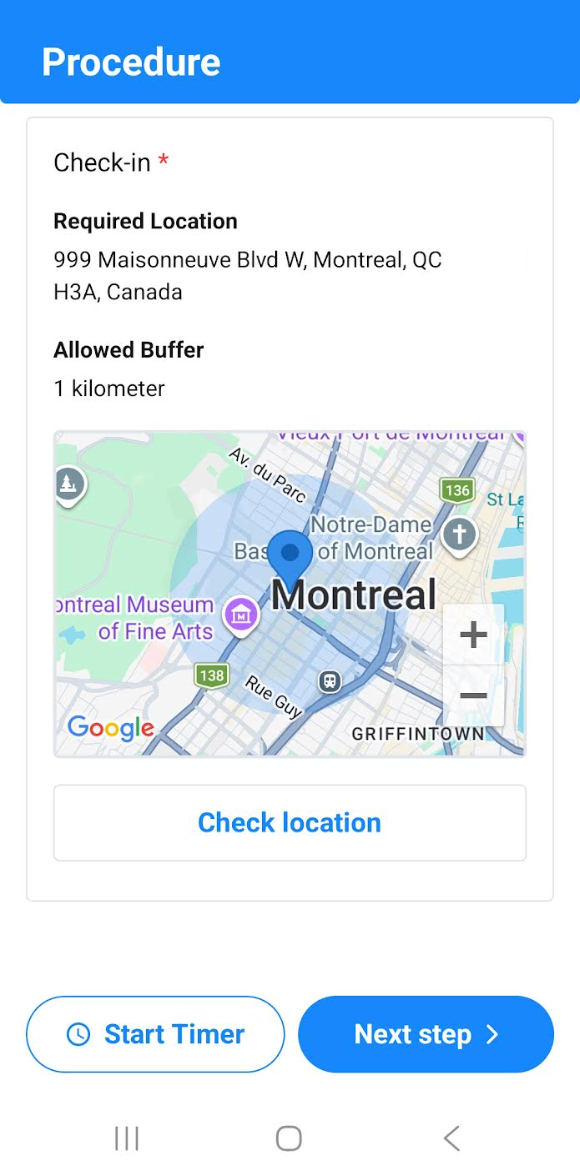
- In the Location Check-In card, review the required location name, address, and allowed buffer. A map shows the location you're required to check-in from.
- Move to the specified location and select Check Location.
- If you're within the buffer distance, the check-in succeeds. A confirmation appears and you can complete the other procedure steps.
- If you're outside the buffer, check-in fails. Move closer to the required location and try again.
If the check-in fails or your location can't be retrieved, see Troubleshoot a Location Check-In for common causes and fixes.
Skip the Location Check
If you can't complete the location check-in, select Skip Location Check and confirm when prompted. You can then proceed with the other procedure steps. Skipped check-ins are recorded in the work order activity log. Your organization's Administrator may review skipped check-ins.
Troubleshoot a Location Check-In
The following table explains the errors you might encounter when using location check-in and suggests possible fixes.
| Error | Description | Fix |
|---|---|---|
| Selected Location Doesn't Have a Valid Address | When configuring location check-in in a work order, the selected location has no valid street address saved. | Edit the location to add a valid street address. The closest known address is acceptable, since the location's GPS coordinates are still used as the actual check-in point, or select a different location. For more information, see Create a Location. |
| You Need to Verify Your Location to Continue | A technician tries to complete a procedure step without first completing or skipping the location check-in. | Complete the check-in (select Check Location) or skip it (select Skip Location Check) before proceeding. |
| Browser/Device Location Permission Denied | The technician selects Check Location and the browser or device has denied location access. | Enable location permissions for MaintainX in your browser or device settings, then try again. |
| Location Retrieval Failure | MaintainX can't get the GPS coordinates even after location permissions are granted (for example, due to poor GPS signal indoors). | Move to an area with better GPS reception (near a window or outdoors) and try again. If the problem persists, select Skip Location Check. |
| Check-In Fails/Technician Is Outside Buffer Distance | The technician's verified coordinates are too far from the required check-in location. | Move closer to the required location and select Check Location again. If you can't get closer, select Skip Location Check. |