Create a Procedure From a Video
| Platform: | AvailableWebNot availableMobile |
|---|---|
| Plan Type: | Not availableBasicNot availableEssentialAvailablePremiumAvailableEnterprise |
| User Type: | Not availableRequesterNot availableFull UserAvailableAdministrator |
The video to procedure generator reduces the time it takes to document a process by generating a procedure directly from a recorded walkthrough. You upload a video of a technician performing a job, and MaintainX® analyzes it to generate a procedure in your procedure library.
Each field in the procedure is linked to the segment of the video it's based on. As technicians complete the procedure, they can watch the segment for each field to see how that part of the job is done.
The video to procedure generator only works for creating new procedures. You can't associate a video with an existing procedure and map segments to fields.
Source Video Requirements
| Requirement | Details |
|---|---|
| Supported formats | .mp4, .mov |
| File Size | Up to 2 GB |
| Video length | Up to 10 min |
Guidelines for Source Videos
For best results, use videos that:
- Focus on a single job or task.
- Are clearly narrated. MaintainX uses the audio along with the visuals. A clear voiceover produces better steps.
- Show one action at a time, with a brief pause between actions. This helps MaintainX map video segments to procedure fields.
- Name required tools, parts, and personal protective equipment (PPE) and make sure they're visible in the frame so they can be captured in procedure fields.
- Keep the camera steady and pointed at the task. Avoid excessive panning or zooming.
Limitations
- A procedure can only have one video.
- You can only upload one video at a time.
- Videos in procedures are not cached with other work order data, so they're not available in offline mode.
Generate a Procedure From a Video
-
From the sidebar, select Library > Procedures.
The Procedure Library opens.
-
Select + New Procedure Template.
-
Select Create from Video.
A file browser opens.
-
Select a video file from your device to upload.
MaintainX uploads the video and starts drafting the procedure. The Task Center appears, where you can monitor the progress.
When the procedure is ready, it appears in the procedure library as a draft. MaintainX sends an in-app notification and an email to let you know.
warningIf you leave MaintainX (e.g., by navigating to another URL), log out, or refresh the browser window while the video is uploading, the upload is canceled. You can still leave the Procedures module, or switch to another browser tab during the upload.
After the file is uploaded, you can leave the Procedures module or close MaintainX. Drafting continues.
-
Return to the Procedure Library to review the draft and edit it as needed.
tipIn the Panel view, the draft appears in the Drafts tab. In the Table view, draft procedure status appears in the Status column.
-
Select Save Template to publish the procedure.
The new procedure appears in your procedure library.
Edit Video-Generated Procedures
You edit video-generated procedures the same way you edit any other procedure (see Edit a Procedure). Video-generated procedures also let you control how segments map to fields.
Video segment mapping options are only available in procedures that you generated from a video. You can't associate a video with an existing procedure and map segments to fields.
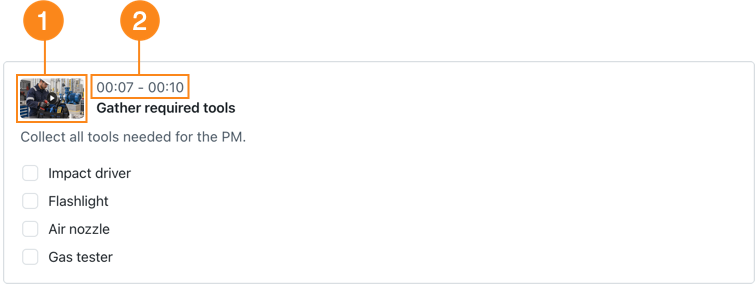
Each field shows a thumbnail from the video 1 and a timestamp 2. The timestamp shows the start and end times of the video segment associated with the field. Start by selecting a field to display its edit options.
Play the Segment for a Field
Select the field's video thumbnail to open a video player. The timeline is bounded to the field's segment, so playback stays within its start and end points.
Adjust the Segment for a Field
-
Select the field's video thumbnail to open a video player.
-
Do either of the following:
-
On the video player timeline, drag the trim handles 1 to change the segment's start and end times.
-
Enter new start and end times directly in the timecode boxes 2.
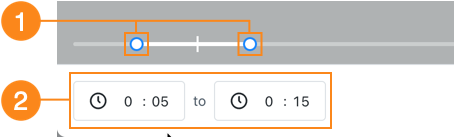
The video player timeline with trim handles and timecode boxes
-
-
Select Save Timestamp to save the new start and end times.
Make sure the segment for each field includes the full action technicians need to perform. When a technician views a segment in a work order, playback jumps straight to the start time. Technicians shouldn't have to manually scrub the timeline for context, which can be difficult with work gloves on a touchscreen. If in doubt, consider leaving a little room before and after the exact action when you set the start and end times.
Remove the Segment from a Field
Select (Delete) to remove the segment from the field.

The field stays in the procedure but is no longer mapped to a video segment.
Map a Video Segment to a New Procedure Field
If you add a new field to a video-generated procedure, you can manually map it to a video segment.
-
Select the field to edit it.
-
Select (Set video timestamp). A video player opens.

The Set video timestamp option on a procedure field -
Set the segment the same way as in Adjust the Segment for a Field.
-
Select Save Timestamp to save the new start and end times.
Filter Procedures by Video Status
In the Procedures module's Table view, the Status column shows you which procedures have videos, and whether they're complete or still in draft mode. Use the Procedure status filter to see only procedures that have the Draft with video or Ready with video statuses.