Search Asset Manuals with MaintainX® Assist
| Platform: | AvailableWebAvailableMobile |
|---|---|
| Plan Type: | Not availableBasicNot availableEssentialNot availablePremiumAvailableEnterprise |
| User Type: | Not availableRequesterAvailableFull UserAvailableAdministrator |
Use MaintainX Assist to search manuals and other documents attached to your assets using natural-language prompts. Instead of manually scanning manuals or using keyword-based searches, MaintainX Assist analyzes your manuals and returns contextual answers and links to the relevant manual pages.
How MaintainX Assist Searches
MaintainX Assist search is AI-powered and prompt-based. You ask questions in plain language and MaintainX Assist does the following:
- Analyzes the manuals and documents attached to your asset.
- Extracts relevant information and generates an answer.
- Provides links to the source pages in the manuals.
- Suggests follow-up actions.
The quality of your results depends on how clearly and specifically you phrase your prompt. If the generated answer doesn’t meet your needs, try the following:
- Be more specific in your prompt.
- Ask follow-up questions to narrow the results.
- Reference part names, error codes, or components.
Search Prerequisites
To search your manuals with MaintainX Assist, you first need to:
- Upload manuals to your asset. For more information, see Edit an asset.
- Process you asset manuals MaintainX Assist. For details, see Process Asset Manuals with MaintainX Assist.
Where Can You Search your Asset Manuals
You can access MaintainX Assist search from asset or work order details.
Each location provides a slightly different search context, which affects how MaintainX Assist generates answers and suggest follow-up actions.
Writing Effective Search Prompts
For best results, use clear, specific questions that reference the task, component, or issue you’re working on.
What safety checks are required before replacing the motor?What torque setting is specified for the drive belt?How do I recalibrate the pressure sensor?
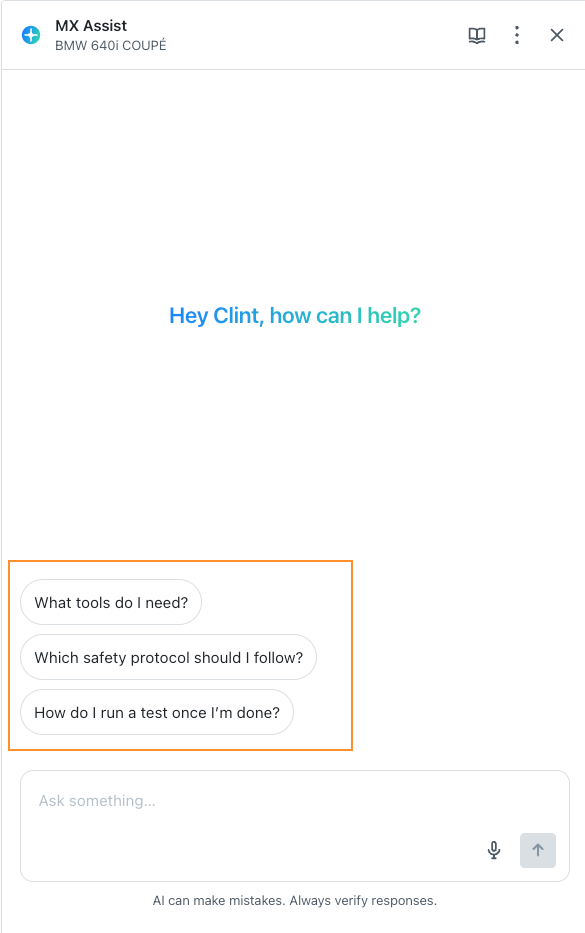
MaintainX Assist also suggests prompts to get you started.
Search Asset Manuals from an Asset
After adding manuals and other documents to an asset, you can use MaintainX Assist to search those documents and answer questions related to maintenance tasks and asset operation.
When you search your asset manuals from an asset, you can:
- Create procedures.
- Create work orders.
- Copy and paste the answer in the asset's Description field.
To search your manuals from an asset:
- Web
- Mobile
-
From the sidebar, select Assets.
-
Select an asset. The asset details opens.
-
In the asset details, select (Ask MX Assist). The MX Assist tab opens.
-
In the asset details, enter a prompt to help MaintainX Assist generate an answer. For more information, see How to Write Effective Prompts.
-
Select the (up arrow) icon.
MaintainX Assist searches the manuals and extracts the necessary information to give you an answer. If you're not satisfied with the answer, you can enter a different prompt.
After MaintainX Assist gives you an answer, do any of the following:
-
Select Generate procedure to create a procedure based on MaintainX Assist's answer. For more information, see Create a Procedure from a MaintainX Assist Answer. After MaintainX Assist generates the procedure, do any of the following:
-
Select Add to... to:
- Use the procedure in existing work orders or work order templates.
- Add the procedure to a new work order or work order template.
-
Select Save to procedure Library to add the generated procedure to your organization procedure library.
-
Select Edit to edit the procedure fields.
-
-
Select View in manual to open a dialog with links to the relevant pages in the asset manual.
-
Select Copy to Clipboard to copy MaintainX Assist's answer.
-
Select (sources) to open a dialog with links to the relevant pages in the asset manual.
-
From the bottom navigation bar, select Assets.
-
Select an asset. The asset details opens.
-
In the asset details, select (Ask MX Assist). The MX Assist tab opens.
-
Do any of the following:
- Select one of the suggested prompts.
- In the search bar, enter a prompt to help MaintainX Assist generate an answer. For details, see How to Write Effective Prompts.
- Select (microphone) to record a prompt. MaintainX uses its AI engine to analyze and transcribe your voice recording before generating an answer.
After MaintainX Assist gives you an answer, do any of the following:
-
Select Generate procedure to create a procedure based on MaintainX Assist's answer. For details, see Create a Procedure from a MaintainX Assist Answer. After MaintainX Assist generates the procedure, do any of the following:
-
Select Add to... to:
- Use the procedure in an existing work order.
- Add the procedure to a new work order.
-
Select Save to Library to add the generated procedure to your organization procedure library.
-
Select Edit to edit the procedure fields.
-
-
Select Copy to clipboard to copy MaintainX Assist's answer.
-
Select View in manual to open a dialog with links to the relevant pages in the asset manual.
You can delete any past interactions you had with MaintainX Assist for a specific asset.
In the asset details, select (Ask MX Assist) then (clear chat).
You can select or to rate the generated answer.
Search Your Asset Manuals From a Work Order
You can use MaintainX Assist to enrich a work order by prompting it to suggest additional steps needed to successfully complete the task. You can also ask MaintainX Assist for additional information that may not be explicitly included in the work order.
When you search your asset manuals from a work order, MaintainX Assist uses the following information to generate an answer:
- The work order's title and description information.
- The fields of any included procedures.
- The manuals attached to the asset.
MaintainX Assist provides suggested prompts after you upload manuals.
- Web
- Mobile
To search your asset manuals from a work order:
-
From the sidebar, select Work Orders.
-
Select a work order. The work order details opens.
-
In the work order details, select (Ask MX Assist). The MX Assist tab opens.
-
Do any of the following:
- Select one of the suggested prompts.
- In the search bar, enter a prompt to help MaintainX Assist generate an answer. For details, see How to Write Effective Prompts.
-
Select the (up arrow) icon.
MaintainX Assist queries the manual and extracts the necessary information to generate an answer. If you're not satisfied with the answer, you can either:
- Ask additional questions to clarify the answer generated by MaintainX Assist.
- Enter another prompt.
After MaintainX Assist gives you an answer, do any of the following:
- Select Attach procedure to generate a procedure based on MaintainX Assist's answer. MaintainX Assist automatically add the procedure to your work order details. For details, see Create a Procedure from a MaintainX Assist Answer.
- Select Copy to clipboard to copy MaintainX Assist's answer.
- Select View in manual to open a dialog with links to the relevant pages in the asset manual.
-
From the bottom navigation bar, Work Orders.
-
Select a work order. The work order details opens.
-
In the work order details, select (Ask MX Assist). The MX Assist tab opens.
-
Do any of the following:
- Select one of the suggested prompts.
- In the search bar, enter a prompt to help MaintainX Assist generate an answer. For details, see How to Write Effective Prompts.
- Select (microphone) to record a prompt using your microphone. MaintainX uses its AI engine to analyze and transcribe your voice recording before generating an answer.
-
If you entered or recorded a prompt, select the (up arrow) icon.
MaintainX Assist queries the manual and extracts the necessary information to generate an answer. If you're not satisfied with the answer, you can either:
- Ask additional questions to clarify the answer generated by MaintainX Assist.
- Enter another prompt.
After MaintainX Assist gives you an answer, do any of the following:
- Select Generate procedure to generate a procedure based on MaintainX Assist's answer. MaintainX Assist automatically add the procedure to your work order details. For details, see Create a Procedure from a MaintainX Assist Answer.
- Select Copy to clipboard to copy MaintainX Assist's answer.
- Select View in manual to open a dialog with links to the relevant pages in the asset manual.
You can select or to rate the generated answer.