Manage Asset Manuals with MaintainX CoPilot®
| Platform: | AvailableWebAvailableMobile |
|---|---|
| Plan Type: | Not availableBasicNot availableEssentialNot availablePremiumAvailableEnterprise |
| User Type: | Not availableRequesterAvailableFull UserAvailableAdministrator |
Before using MaintainX CoPilot, you need to upload asset manuals to MaintainX®. When an asset has at least one manual attached to it, MaintainX CoPilot automatically processes it. You can then ask questions to MaintainX CoPilot and create entities like work orders and procedures for your organization.
Upload Asset Manuals
Upload a manual to MaintainX to start processing it. A manual must be a PDF file smaller than 300MB. Larger manuals take longer to process, but MaintainX CoPilot only has to process each manual once. If you upload a manual again, MaintainX CoPilot won't process it a second time.
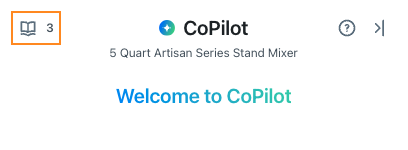
You can attach several manuals to an asset. You can also upload images that contain text. A counter in the MaintainX CoPilot view displays the number of manuals attached to the asset.
To upload a manual:
- Web
- Mobile
-
From the sidebar, select Assets.
-
Select an asset.
-
In the asset details, do any of the following:
-
Select Edit. Then upload the manual in the Files field. For details, see Edit an Asset.
-
Select CoPilot then:
- Select Get started by attaching manuals.
- Select the (manual) icon, then Upload a Manual.
-
MaintainX CoPilot processes the manual automatically.
The Enabled label appears next to the processed manual.

- From the bottom navigation bar, select Assets.
- Select an asset.
- In the asset details, select Edit then Edit manually.
- In the Files section, select Attach then upload the manual.
- Select Update.
MaintainX CoPilot processes the manual automatically.